

Gmail Messages
The Gmail Messages data source connector allows you to fetch data from your Gmail account.
Authorization
Section titled “Authorization”Create a new configuration of the Gmail Messages connector. Then click Authorize Account to authorize the configuration. Your inbox is accessed as read only.
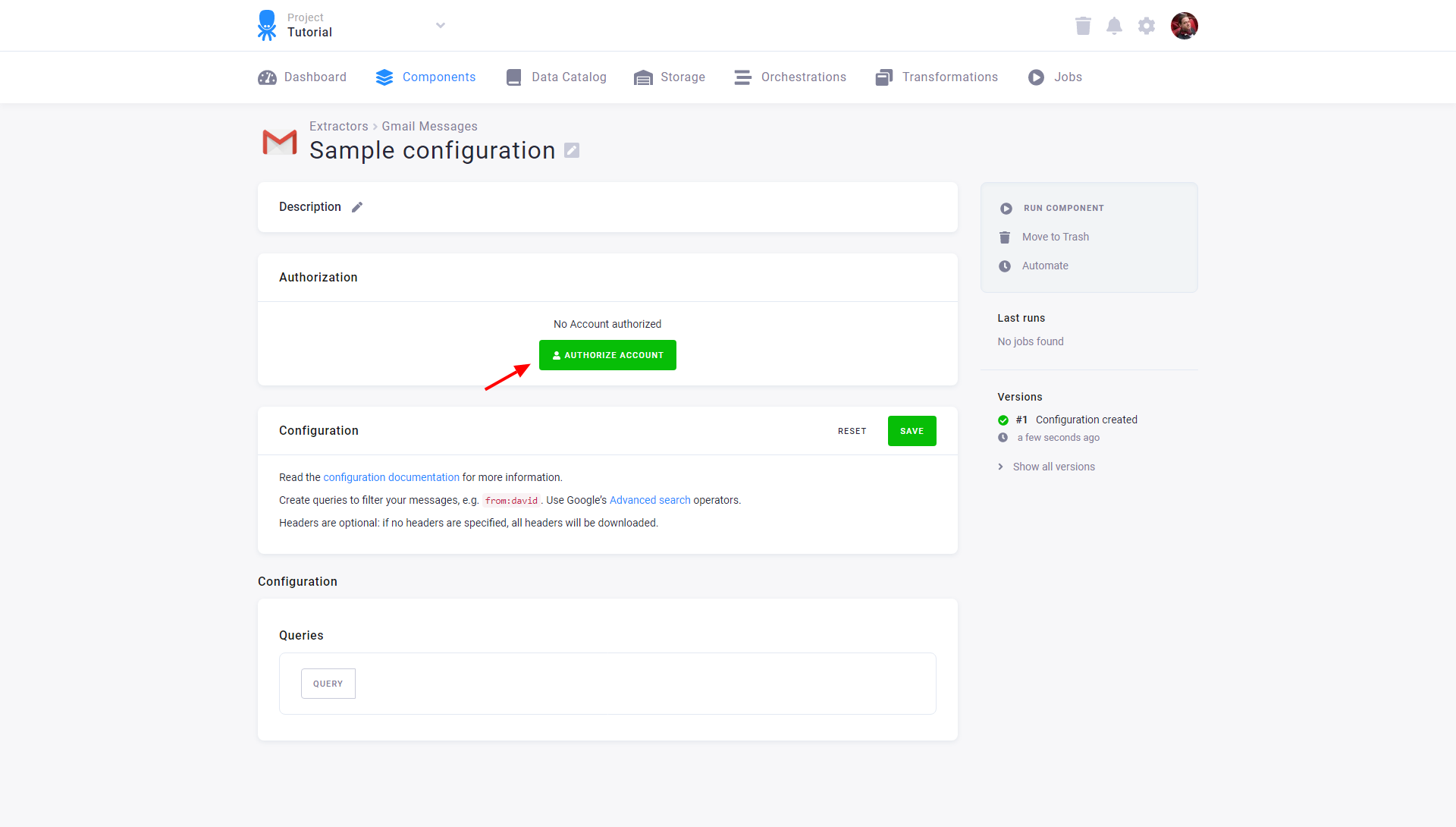
Reading email messages is considered very sensitive by Google. This means that authorization may often be rejected and the app may show as blocked or not-verified. In such a case, we recommend that you use Custom OAuth Credentials. Generally using Custom OAuth credentials is the preferred authorization option, although it is more complicated.
Custom OAuth Credentials
Section titled “Custom OAuth Credentials”- Visit the Google API Console.
- Select an existing project or create a new one. Click Enable APIs and Services.
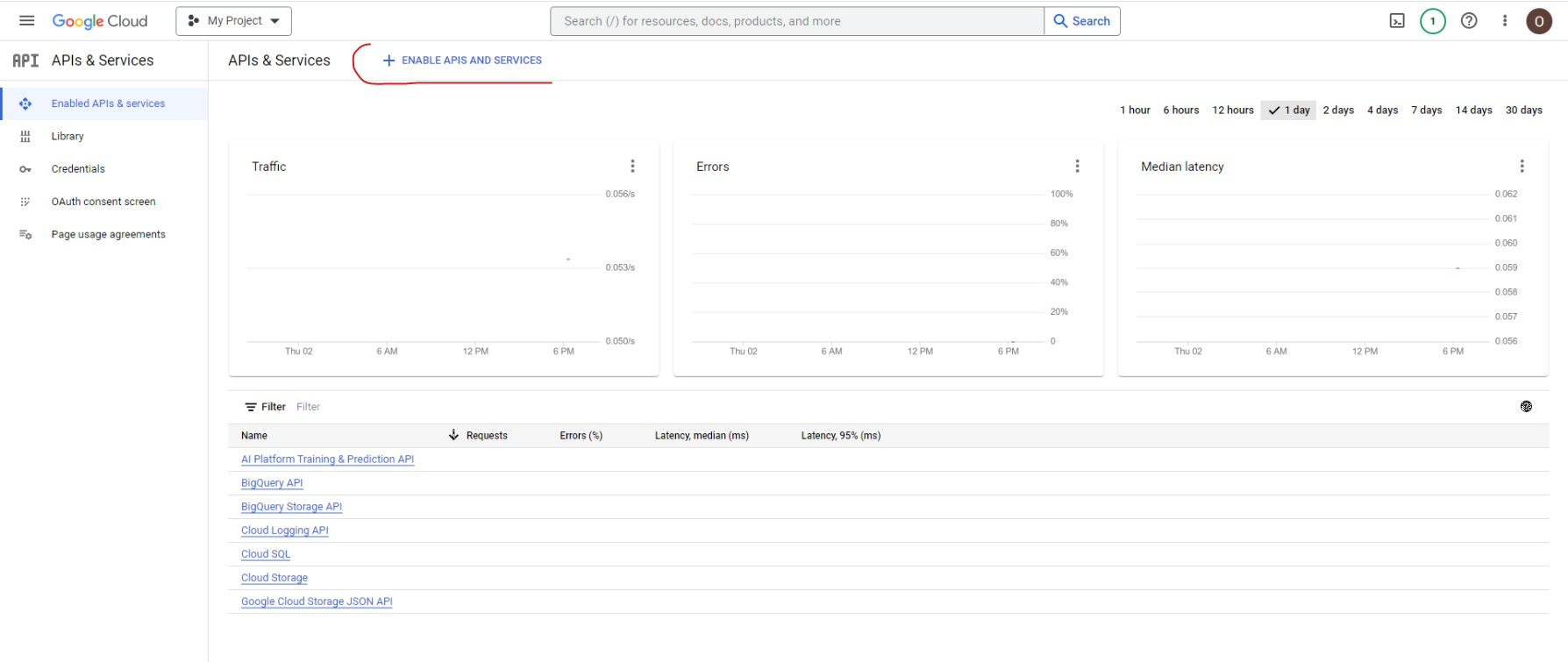
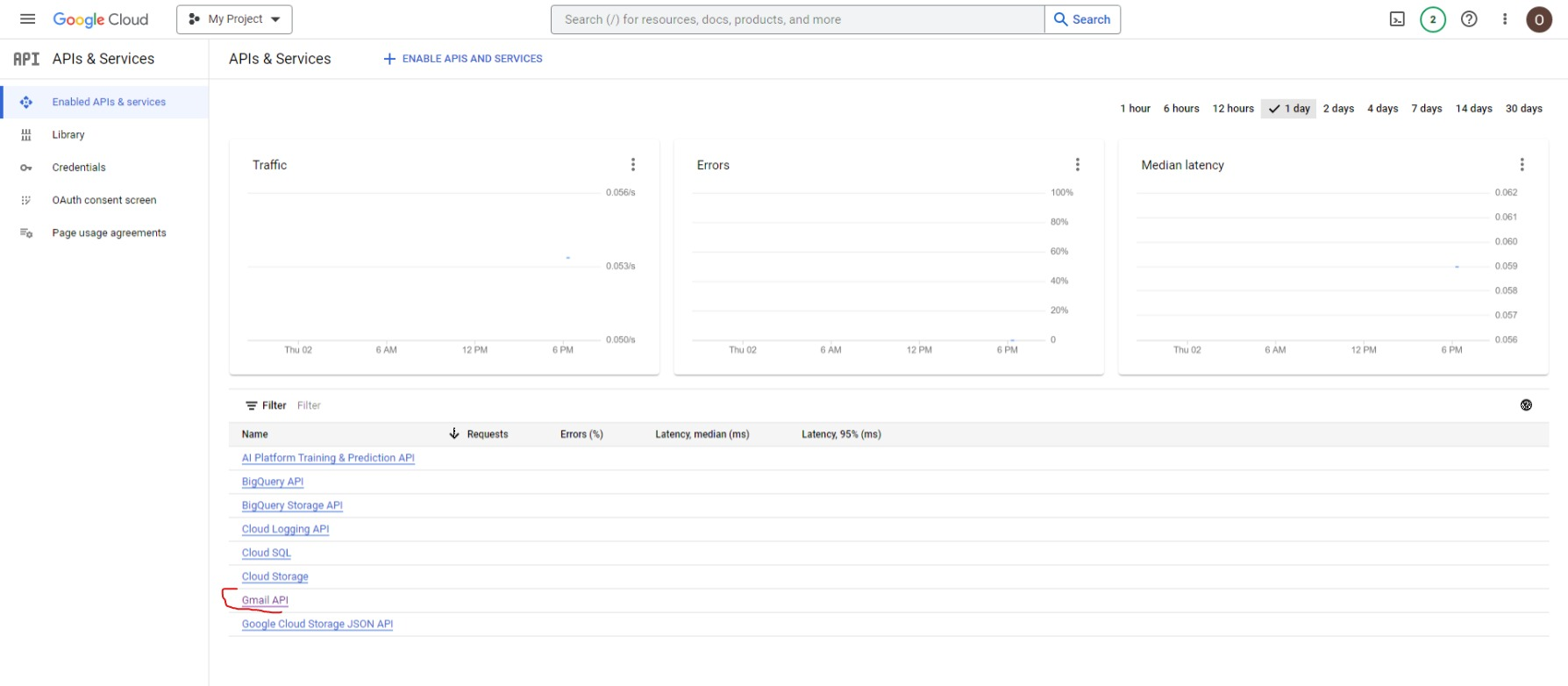
- Select the Gmail API and Enable it. You should then see it in the list of enabled APIs.
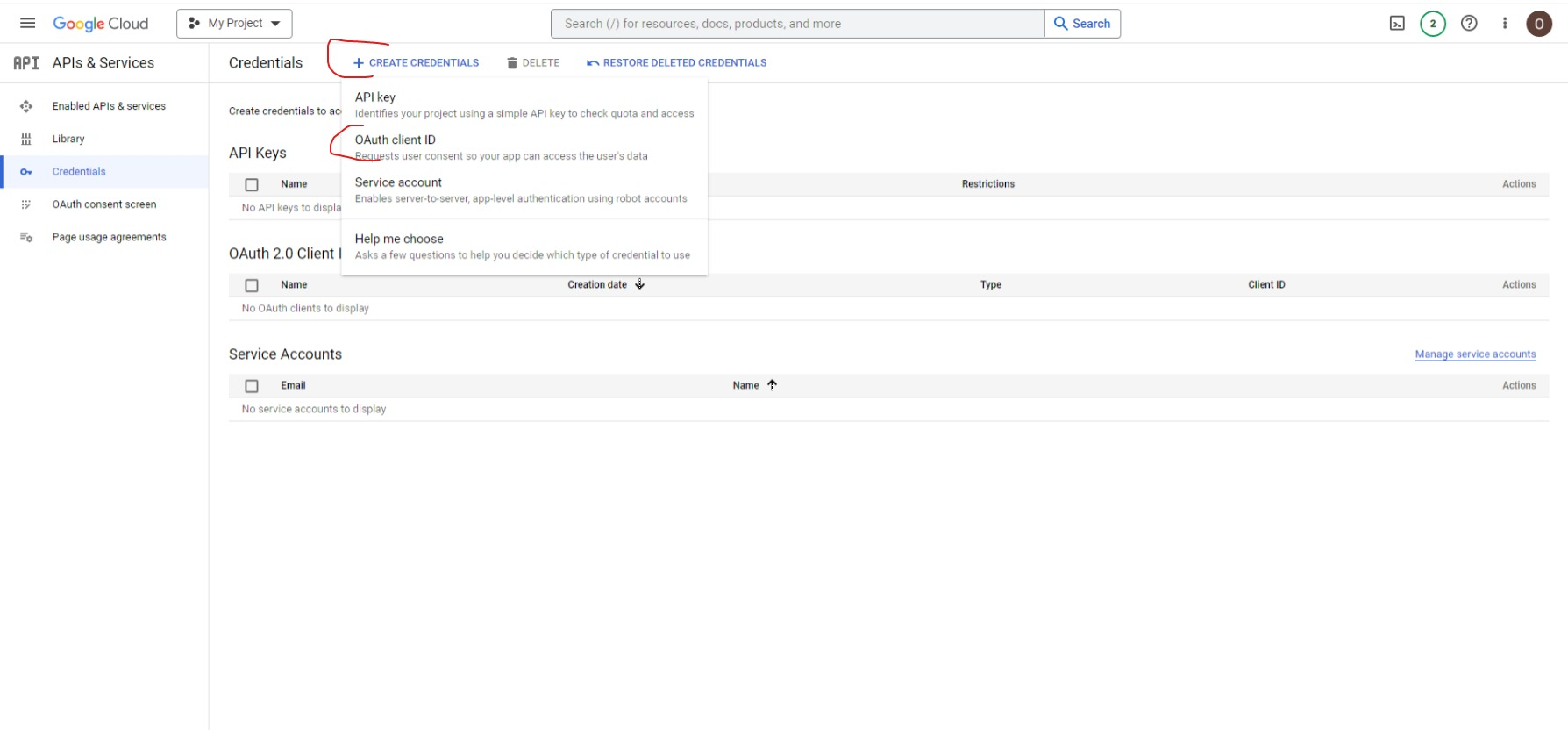
- Select the Credentials section from the menu on the left, click the Create Credentials button, and select OAuth client ID.
-
Choose Web Application. Into Authorized redirect URIs insert:
https://oauth.keboola.com/authorize/keboola.ex-gmail/callback- or
https://oauth.eu-central-1.keboola.com/authorize/keboola.ex-gmail/callback - or
https://oauth.north-europe.azure.keboola.com/authorize/keboola.ex-gmail/callback
Depending on which stack you are using or planning to use.
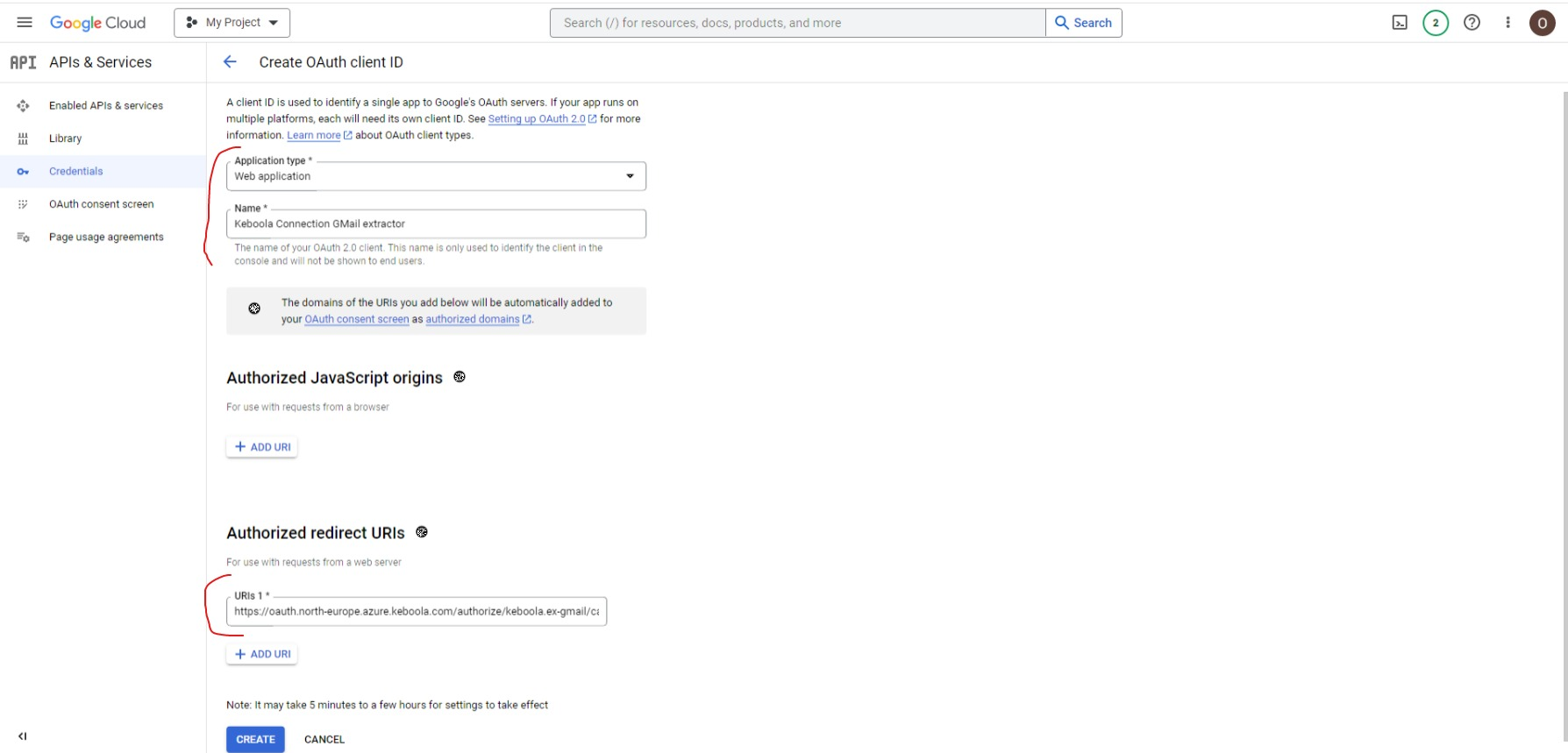
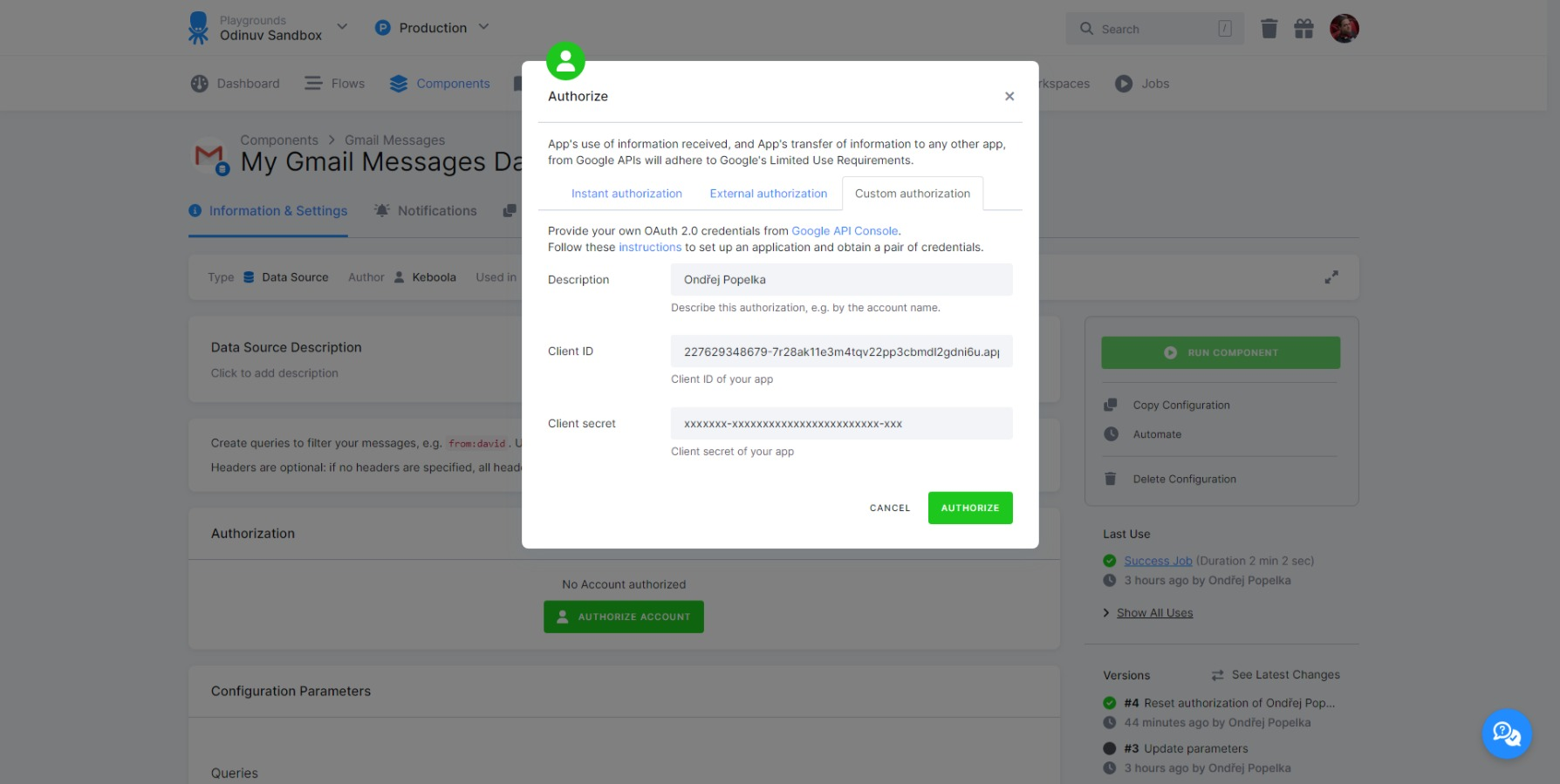
- Click Create and a pop-up window will display your new client ID and client secret credentials.
- You can now use these credentials in the Custom Authorization tab when authorizing the Google Analytics connector.
Configuration
Section titled “Configuration”Fill in the form to fit your needs.
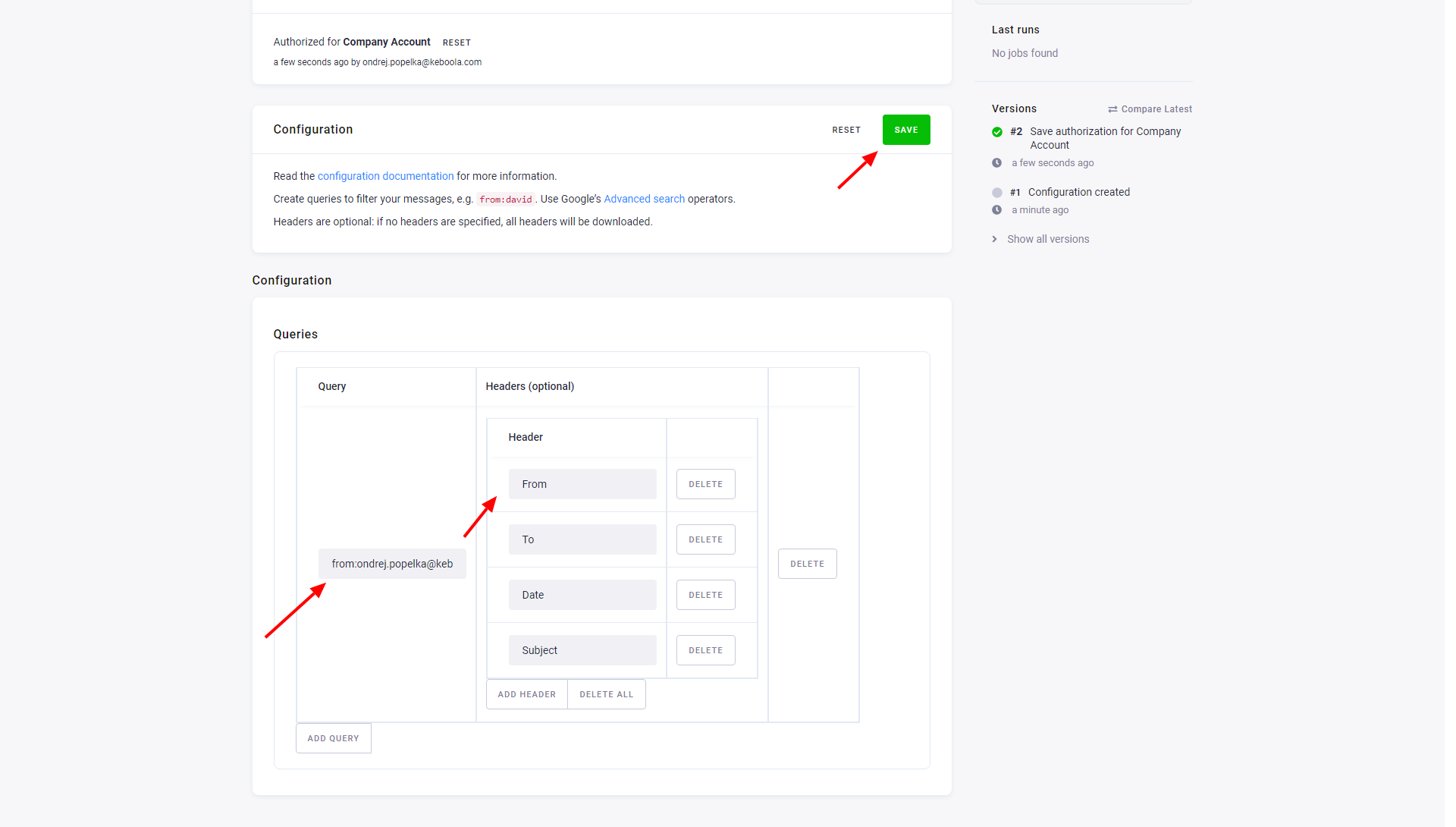
- Query — Query to filter your messages. To speed up the extraction, be as specific as possible. For more detailed information about querying, follow Google’s Advanced Search help site.
- Headers (optional) — Headers you want to download. If no headers are specified, all headers will be downloaded.
Don’t forget to Save the configuration.
Produced Tables
Section titled “Produced Tables”Data are always imported incrementally. The data source connector produces several tables that can be joined together.
Queries
Section titled “Queries”Queries and their messages; it is good to know which query a message came from.
| query | messageId |
|---|---|
from:some.address@example.com | 9876cbd54bd215a6 |
from:another.address@example.com | 1234abcd2ffdc1d6 |
Messages
Section titled “Messages”A base table of messages:
| id | threadId |
|---|---|
9876cbd54bd215a6 | 1234abcd2ffdc1d6 |
1234abcd2ffdc1d6 | 1234abcd2ffdc1d6 |
Tip: You can group your messages to conversations with GROUP BY threadId.
Headers
Section titled “Headers”All downloaded headers:
| messageId | name | value |
|---|---|---|
1234abcd2ffdc1d6 | From | News <some.address@example.com> |
1234abcd2ffdc1d6 | Subject | Trending News |
All downloaded message parts:
| messageId | partId | mimeType | bodySize | bodyData |
|---|---|---|---|---|
1234abcd2ffdc1d6 | 0 | text/plain | 26 | Lorem ipsum dolor sit amet |
1234abcd2ffdc1d6 | 1 | text/html | 33 | <p>Lorem ipsum dolor sit amet</p> |
Note: Only parts with text/plain and text/html mime types are downloaded.