

Authentication
Once an app is deployed, its URL is publicly available! We recommend using one of the built-in authentication methods described below to protect your app.
Keboola provides several built-in authentication methods to control who can access your apps. Choose the method that best fits your security requirements.

No built-in authentication is applied — the app is publicly accessible to anyone with the URL. You may implement your own authorization method within the app itself.
For Streamlit apps, you can use the Streamlit authenticator or take a look at this example.
Basic Authentication
Section titled “Basic Authentication”This method protects your app with a password generated by Keboola. Users must enter the password before accessing the app.
OIDC (OpenID Connect)
Section titled “OIDC (OpenID Connect)”This enables users to log into your app using your Single Sign-On (SSO) providers. Keboola supports the following OIDC providers:
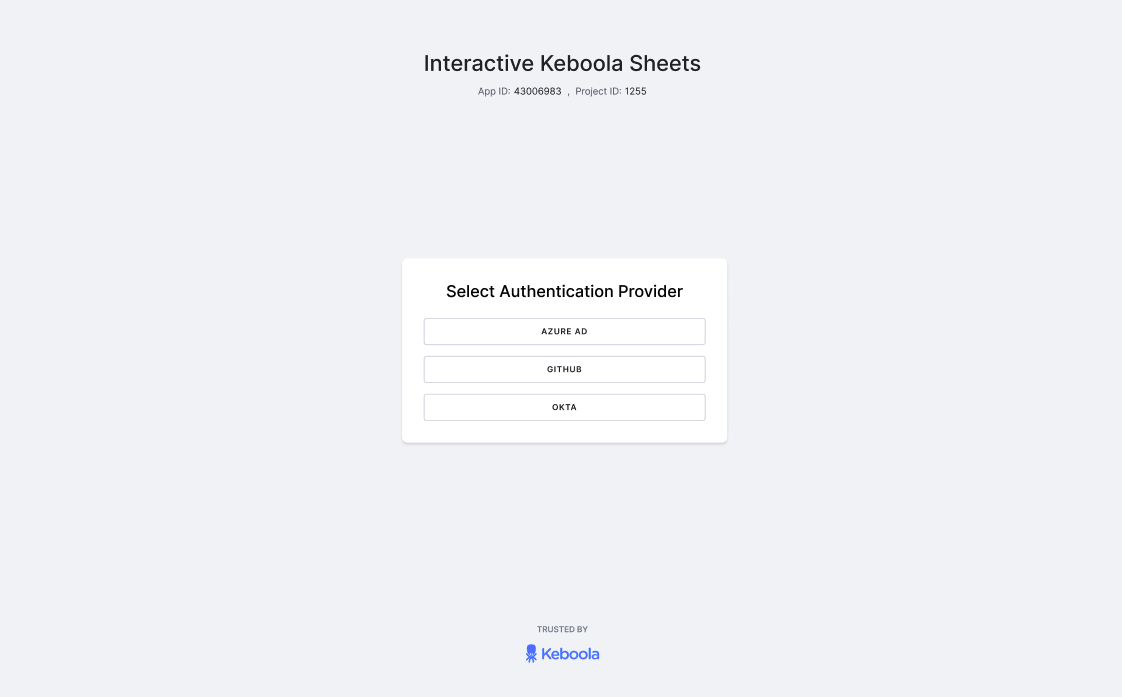
If you enter an app with OIDC, you will be asked to select an Authentication Provider and sign in.
GitHub Authentication
Section titled “GitHub Authentication”Restrict access to your app using GitHub OAuth. Users authenticate via their GitHub account, and you can optionally restrict access to specific organizations, teams, repositories, or individual users.
Required Fields
Section titled “Required Fields”| Field | Description | Example |
|---|---|---|
| Client ID | Client ID from GitHub Developer Settings > OAuth Apps. | Ov23liABCDEF123456 |
| Client Secret | Client Secret from the same GitHub OAuth App. | (paste your GitHub secret) |
Optional Fields
Section titled “Optional Fields”| Field | Description | Example |
|---|---|---|
| GitHub URL | Your GitHub Enterprise Server URL. Leave empty for public GitHub. | https://github.com |
| Organization | URL slug of your GitHub organization. Restricts access to organization members. | my-company |
| Team | URL slug of the team within the organization. Requires Organization to be set. | data-engineers |
| Repository | Restrict to repository collaborators. Format: owner/repo-name. | my-company/analytics |
| Access Token | Required for private org/team/repo restrictions. Needs read:org scope. Generate at GitHub > Settings > Developer Settings > Personal Access Tokens. | ghp_... |
| Allowed Users | Comma-separated GitHub usernames. If set, only these users can log in. | jane-smith, john-doe |
Setup Instructions
Section titled “Setup Instructions”- Go to your GitHub account Settings > Developer Settings > OAuth Apps and create a new OAuth App.
- Set the Authorization callback URL to:
https://<dataAppId>.hub.<keboolaConnectionHost>/_proxy/callback(e.g.,https://my-app-12345678.hub.north-europe.azure.keboola.com/_proxy/callback). - Copy the Client ID and Client Secret from the created OAuth App.
- In your Keboola app configuration, select GitHub as the authentication method.
- Paste the Client ID and Client Secret.
- Optionally configure organization, team, repository, or allowed users restrictions.
- If you use organization, team, or repository restrictions with a private organization, provide an Access Token with
read:orgscope. - Save and redeploy your app.
GitLab Authentication
Section titled “GitLab Authentication”Restrict access to your app using GitLab OAuth. Users authenticate via their GitLab account, and you can optionally restrict access by groups, projects, or roles.
Required Fields
Section titled “Required Fields”| Field | Description | Example |
|---|---|---|
| Client ID | Application ID from GitLab > Settings > Applications. | a1b2c3d4e5f6... |
| Client Secret | Application secret from the same GitLab application. | gloas-xxxxxxxxxxxxxxxxxxxxxxxxxxxx |
| GitLab Instance URL | Use https://gitlab.com for public GitLab, or your self-hosted URL. | https://gitlab.com |
Optional Fields
Section titled “Optional Fields”| Field | Description | Example |
|---|---|---|
| Groups | Only members of these groups can access the app. Use the URL path, not the display name. Separate multiple groups with commas. | my-org/data-team |
| Projects | Restrict access to members of these projects. Format: namespace/project-slug. | my-org/analytics-app |
| Allowed Roles | Leave empty to allow any role. Valid values: guest, reporter, developer, maintainer, owner. | developer, maintainer |
Setup Instructions
Section titled “Setup Instructions”- Go to your GitLab instance Settings > Applications and create a new application.
- Set the Redirect URI to:
https://<dataAppId>.hub.<keboolaConnectionHost>/_proxy/callback(e.g.,https://my-app-12345678.hub.north-europe.azure.keboola.com/_proxy/callback). - Ensure the
openid,profile, andemailscopes are selected. If you use group or project restrictions, also selectread_api. - Copy the Application ID and Secret.
- In your Keboola app configuration, select GitLab as the authentication method.
- Paste the Client ID, Client Secret, and GitLab Instance URL.
- Optionally configure groups, projects, or allowed roles restrictions.
- Save and redeploy your app.
JumpCloud Authentication
Section titled “JumpCloud Authentication”Restrict access to your app using JumpCloud OIDC. Users authenticate via their JumpCloud account, and you can optionally restrict access by roles.
Required Fields
Section titled “Required Fields”| Field | Description | Example |
|---|---|---|
| Client ID | Client ID from JumpCloud Admin Console > SSO > your app. | 6507c80f5f2b490a... |
| Client Secret | Client Secret from JumpCloud Admin Console > SSO > your app > SSO tab. Treat like a password. | (paste your JumpCloud secret) |
| Issuer URL | Pre-filled. For custom tenants, ask your JumpCloud admin for the correct issuer URL. | https://oauth.id.jumpcloud.com/ |
| Logout URL | Pre-filled. Change only if your JumpCloud admin provides a different logout endpoint. | https://oauth.id.jumpcloud.com/oauth2/sessions/logout |
Optional Fields
Section titled “Optional Fields”| Field | Description | Example |
|---|---|---|
| Allowed Roles | Role values must match exactly what is set in JumpCloud’s attribute mapping. Leave empty to allow any authenticated user. | data-analyst, admin |
Setup Instructions
Section titled “Setup Instructions”- In the JumpCloud Admin Console, go to SSO and create a new application (or use an existing one).
- Configure the application as an OIDC application.
- Set the Redirect URI to:
https://<dataAppId>.hub.<keboolaConnectionHost>/_proxy/callback(e.g.,https://my-app-12345678.hub.north-europe.azure.keboola.com/_proxy/callback). - Copy the Client ID and Client Secret from the SSO tab.
- In your Keboola app configuration, select JumpCloud as the authentication method.
- Paste the Client ID, Client Secret, Issuer URL, and Logout URL.
- Optionally configure allowed roles to restrict access.
- Save and redeploy your app.
Callback URL Format
Section titled “Callback URL Format”All authentication methods that use OAuth or OIDC require a callback URL. The format is always:
https://<dataAppId>.hub.<keboolaConnectionHost>/_proxy/callbackFor example: https://my-app-12345678.hub.north-europe.azure.keboola.com/_proxy/callback
You can find your app’s full URL after the first deployment in the app configuration.