

Loading Data from Database
So far, you have learned to load data into Keboola manually and via a Google Sheets data source connector.
Now, let’s explore loading data from an external database using the Snowflake Database data source (the procedure is the same for all our database data sources). We will use our own sample Snowflake database, so do not worry about having to get database credentials from anyone.
Configure Snowflake Data Source Connector
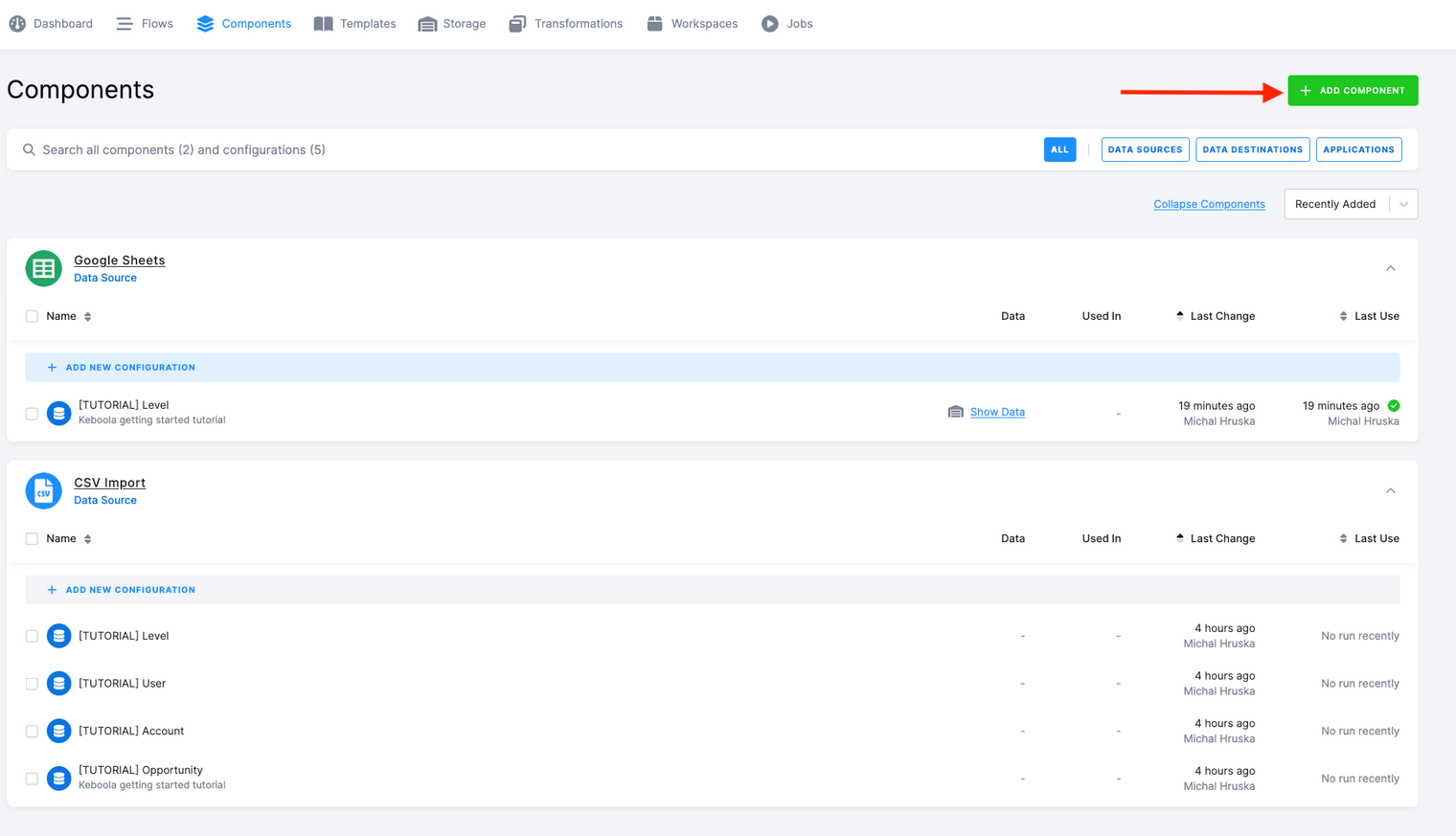
Section titled “Configure Snowflake Data Source Connector”- Start by going into the Components section and click Add Component.
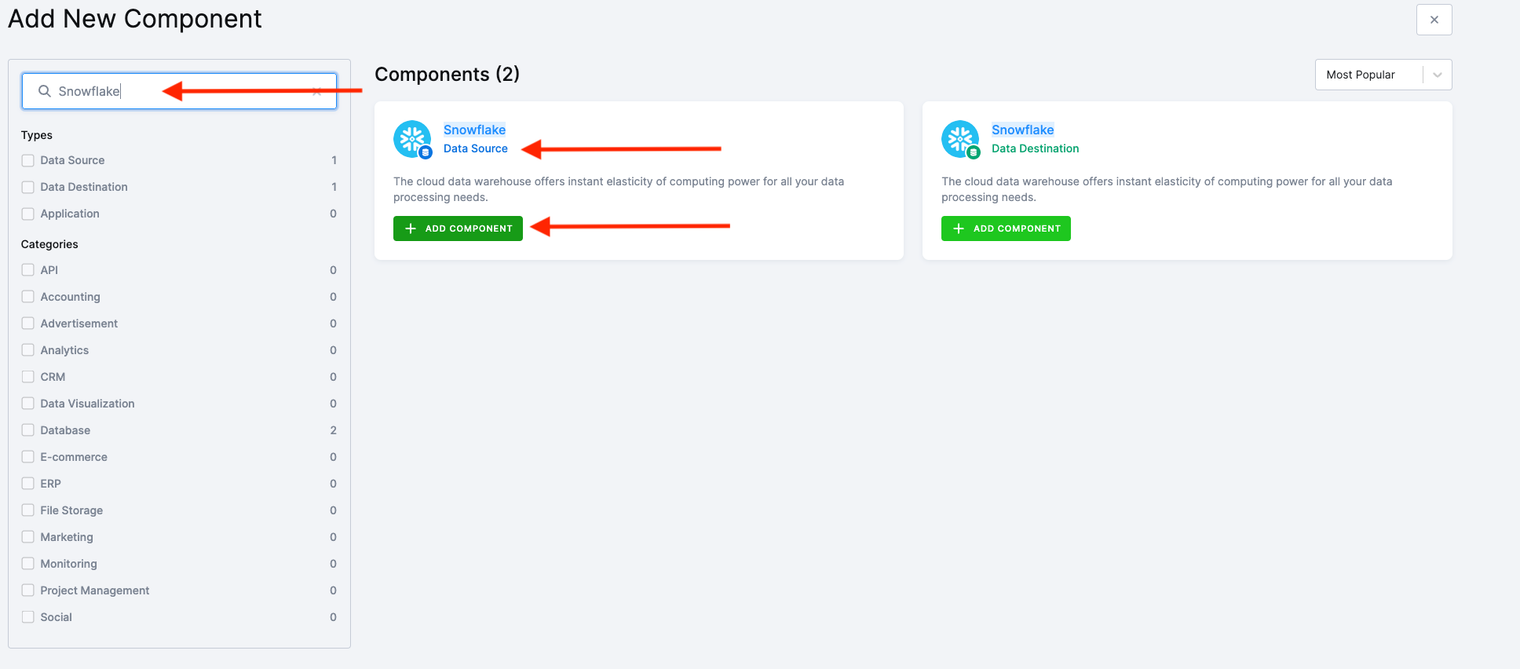
- Use the search box to find the Snowflake data source.
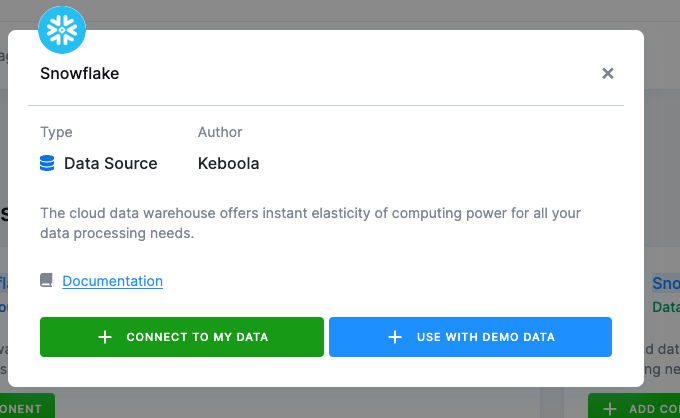
- Click Add Component and select Connect To My Data.
- Enter a name and a description and click Create Configuration.
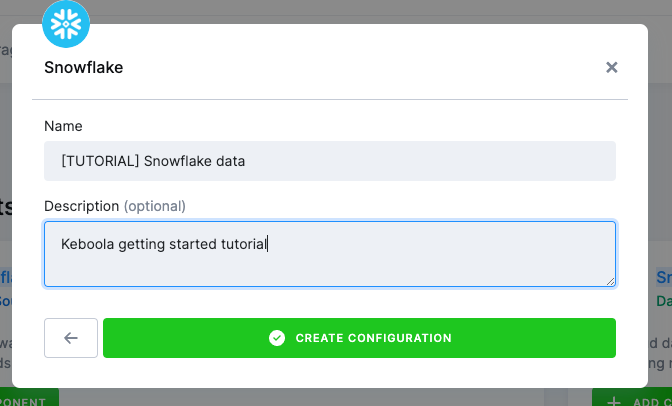
Similarly to other components, the Snowflake data source connector can have multiple configurations. As each configuration represents a single database connection, we only need one configuration.
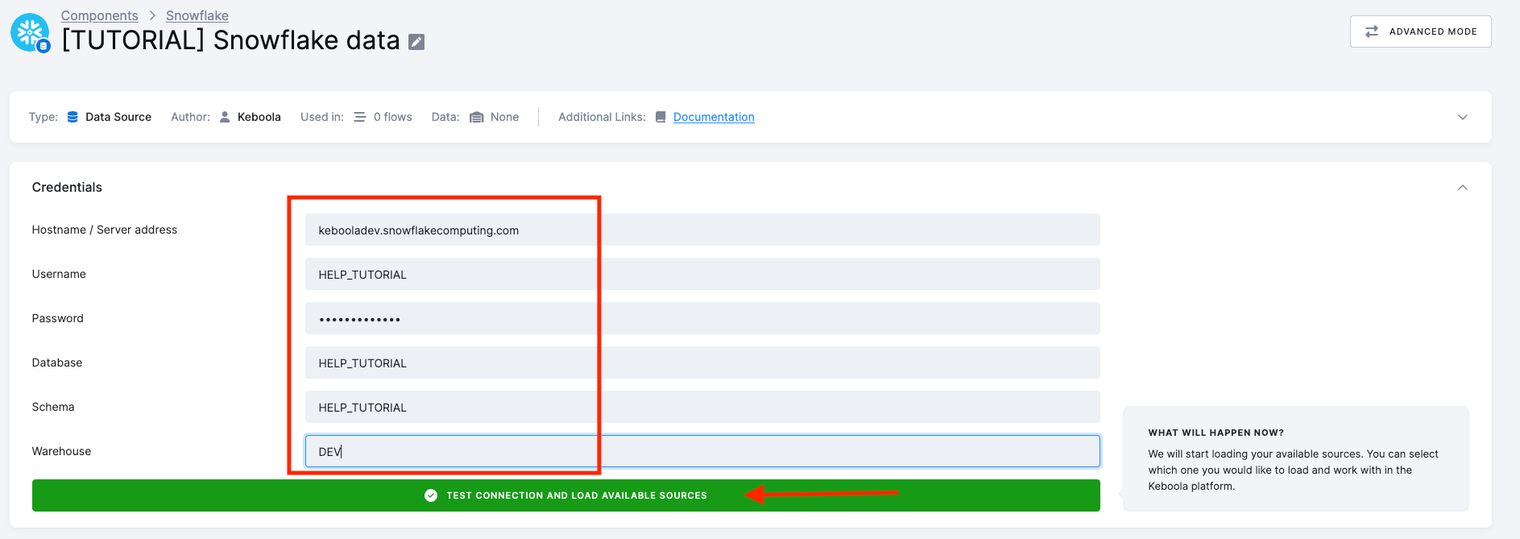
- Enter the following credentials:
- Host Name to
kebooladev.snowflakecomputing.com. - Username, Password, Database, and Schema to
HELP_TUTORIAL. - Warehouse to
DEV.
- Click Test Connection and Load Available Sources.
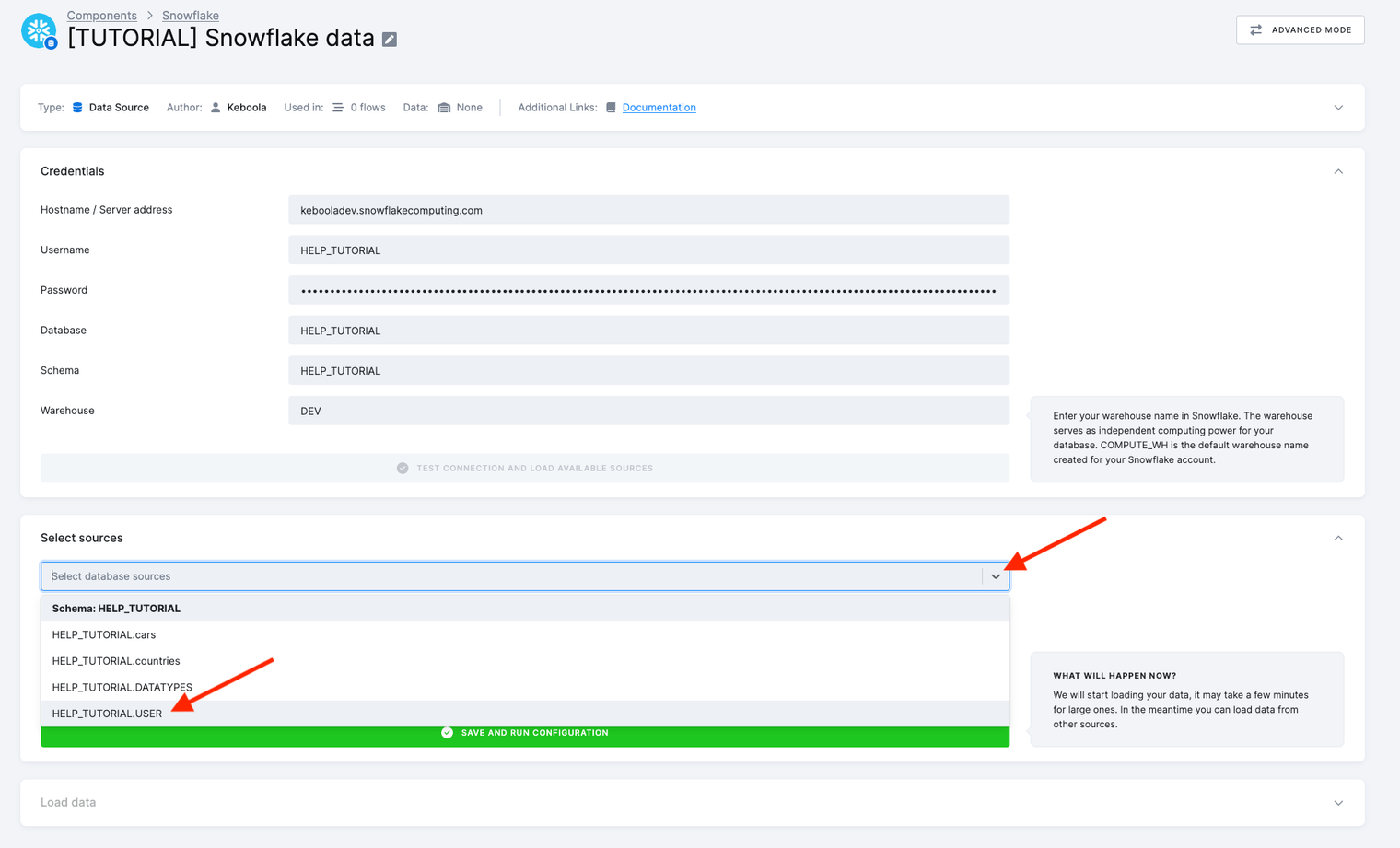
- Under Select sources, use the dropdown menu to select the
OPPORTUNITY,ACCOUNT, andUSERtables.
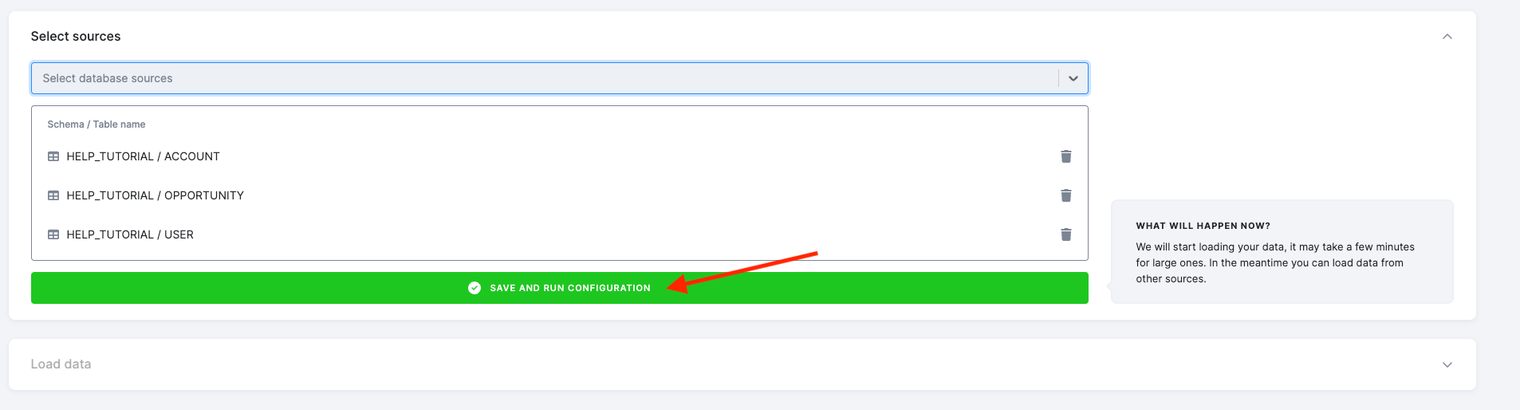
- After selecting all the required tables, click Save and Run Configuration. This action will execute the data extraction, generating three new tables in your Storage.
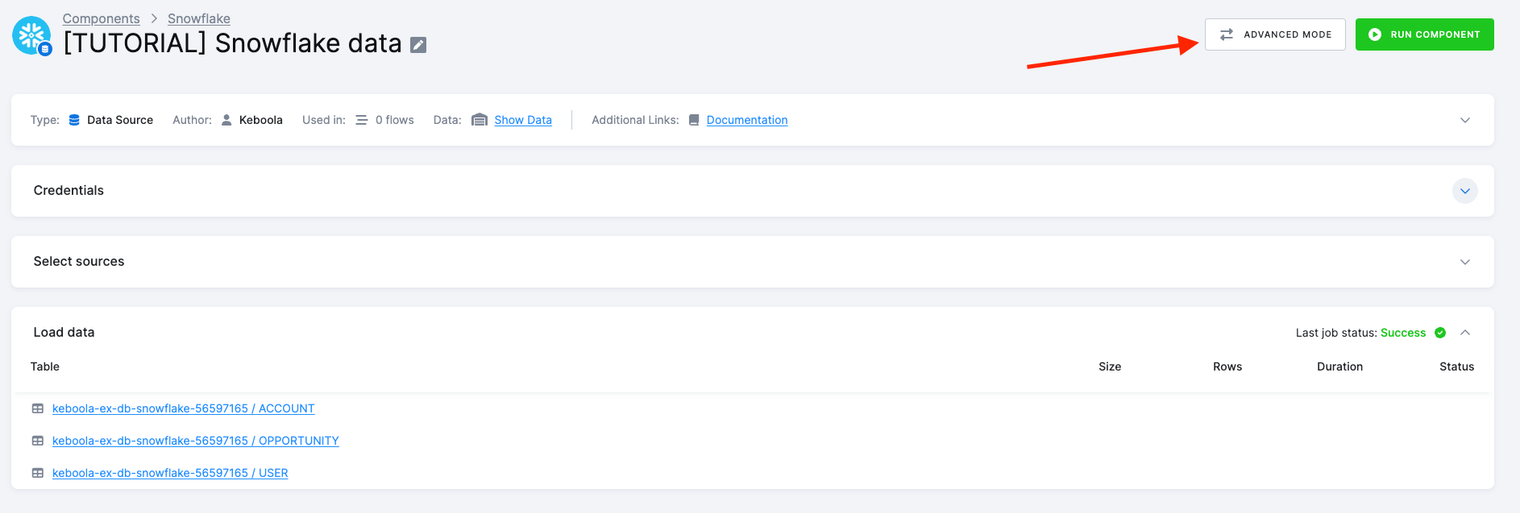
Running the component creates a background job that - connects to the database, - executes the queries, and - stores results in the specified tables in Storage.
For more advanced configuration options, such as incremental fetch, incremental load, or advanced SQL query mode, please navigate to Advanced Mode. Note that we will not cover the advanced mode options in this tutorial.
What’s Next
Section titled “What’s Next”Proceed to Data Manipulation.
If You Need Help
Section titled “If You Need Help”Feel free to reach out to our support team if there’s anything we can help with.