

Jobs
Most of the things done in Keboola run as background, asynchronous jobs. For an overview of all jobs, running and finished, go to the Jobs section:
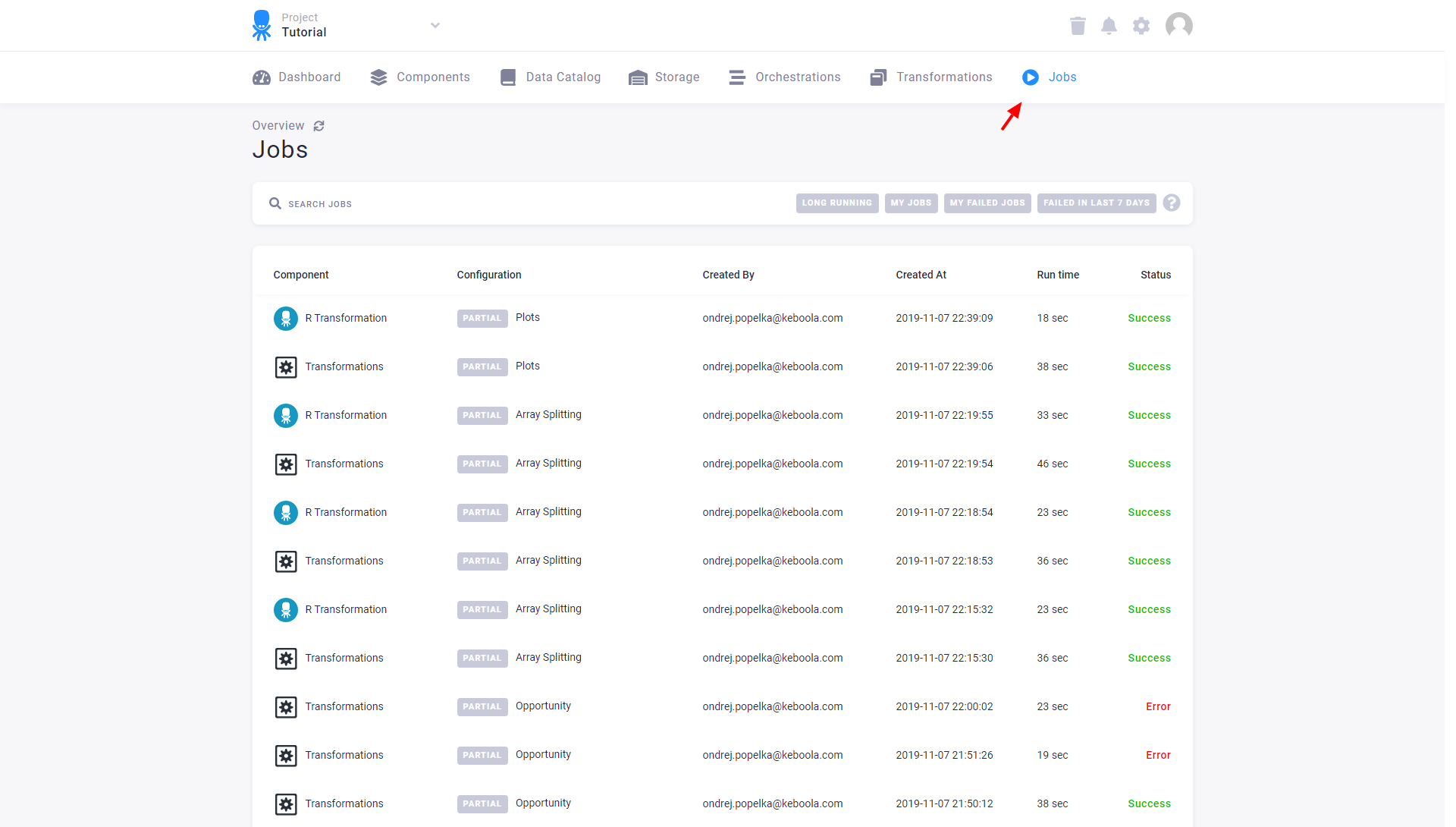
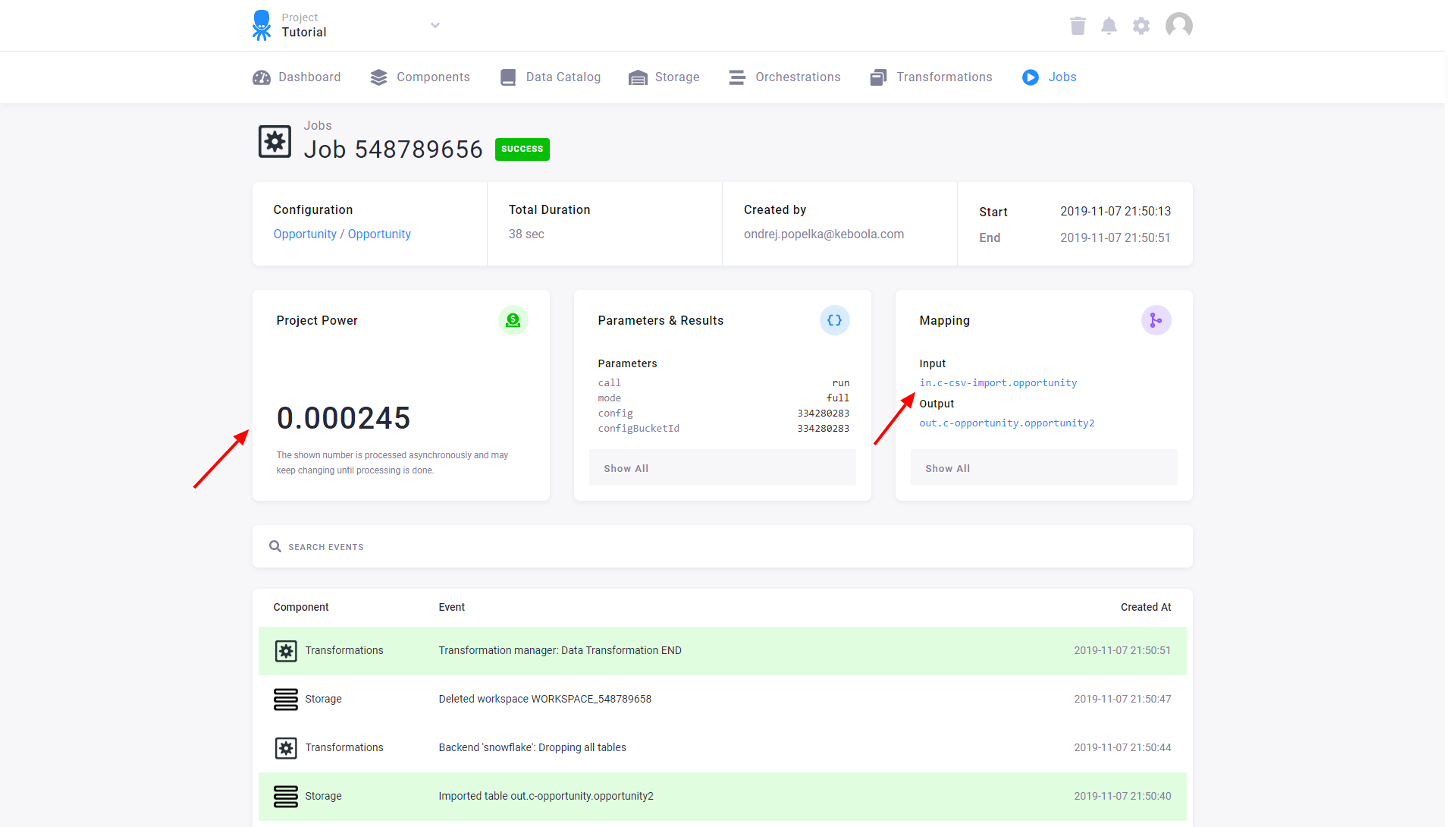
All jobs are logged and their tracked history is virtually unlimited. Click on a job to see details on
- what tables were imported (created by the job and imported into your Storage).
- what tables were exported (read from your Storage by the job).
- how many credits were used by running the job.
- what events occurred during the job execution.
- what exact parameters were used for the job (this might be useful when working with the API).
Searching the jobs log
Section titled “Searching the jobs log”Using the search box and advanced patterns you can easily find job based on various parameters.
Search attributes
Section titled “Search attributes”| Query | |
|---|---|
| Job status | status:success |
| User who created the job | token.description:john.doe@company.com |
| (Docker) Component name | params.component:keboola.ex-http OR component:docker params.component:keboola.ex-http |
| Config ID | params.config:351711187 |
| Duration | durationSeconds:>120 |
| Time started | startTime:[2018-06-21 TO 2018-07-01] |
| Time finished | endTime:[2018-06-21 TO 2018-07-01] |
| Component type | component:transformation (possible values are docker, transformation and orchestrator) |
Modifiers
Section titled “Modifiers”| Query | |
|---|---|
| Exclude some results | -status:success (Note the minus sign before the query) |
| Open ended time query | endTime:[2018-06-21 TO *] Show jobs after 21st June 2018. |
Useful examples
Section titled “Useful examples”| Query | |
|---|---|
| Failed flows | component:orchestrator status:error |
| Long running non-successful flows (more than 2 hours) | component:orchestrator durationSeconds:>7200 -status:success |
| Flows which ended with warning | component:orchestrator status:warning |
| Failed transformations | component:transformation status:error |
| Failed jobs from Docker component HTTP data source connector | params.component:keboola.ex-http status:error |
| Jobs from either HTTP data source or Google Sheets data destination connector | params.component:(keboola.ex-http OR keboola.wr-google-sheets) |
| All non-successful jobs from either HTTP or Google Sheets writer | params.component:(keboola.ex-http OR keboola.wr-google-sheets) AND -status:success |
For more technical information about background jobs, see our Developers documentation.
Running Jobs
Section titled “Running Jobs”Jobs are either run manually from any configuration or automatically by the flow at a scheduled time. In either case, the typical life time of a job has the following states:
waiting —> processing —> success/error
Until a job is finished (i.e., it is waiting or processing), it can be terminated:
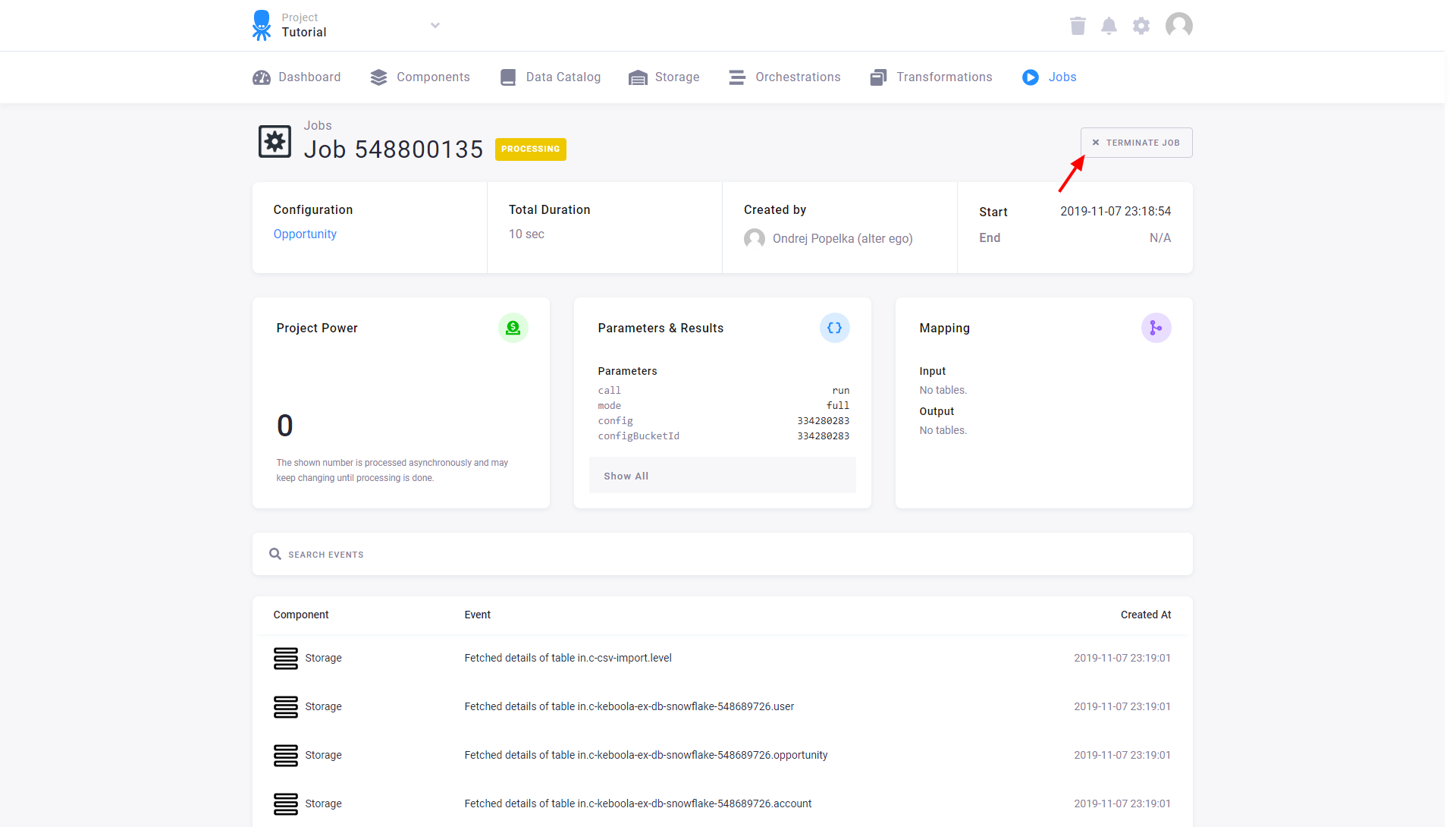
Note that a job is not terminated immediately upon clicking the Terminate button. Its termination usually takes a few seconds.
In some cases, a job can have child jobs. They are identified by having their RunId delimited with
a dot --- e.g., 347371952.3473719650. In this case, the job 3473719650 run is in fact a child
job to 347371952. Terminating the parent job will automatically terminate the child job too.
Terminating the child job will probably cause the parent to terminate or fail.
Waiting Jobs
Section titled “Waiting Jobs”When a job is run, it is always put in the waiting state to wait for our infrastructure --- worker to start executing it. This usually takes anywhere from several seconds to a couple of minutes at most.
There is one more reason for a job to be in the waiting state: project parallelism limits. Either the same configuration of the same component is already being executed, or the overall limit of concurrently running jobs within a project was exceeded. That means that a job will be in the waiting state under the following conditions:
- If the total number of running jobs in the project is greater or equal to 10.
- If there is already a running job of the same configuration.
- Unless it is a transformation job, in which case the same configuration is allowed to run, provided that it is executed by different tokens.
Storage Jobs
Section titled “Storage Jobs”Not only we record all jobs executed in your Keboola project, we also record all data that was uploaded into it. Go to Storage and click the Jobs tab:
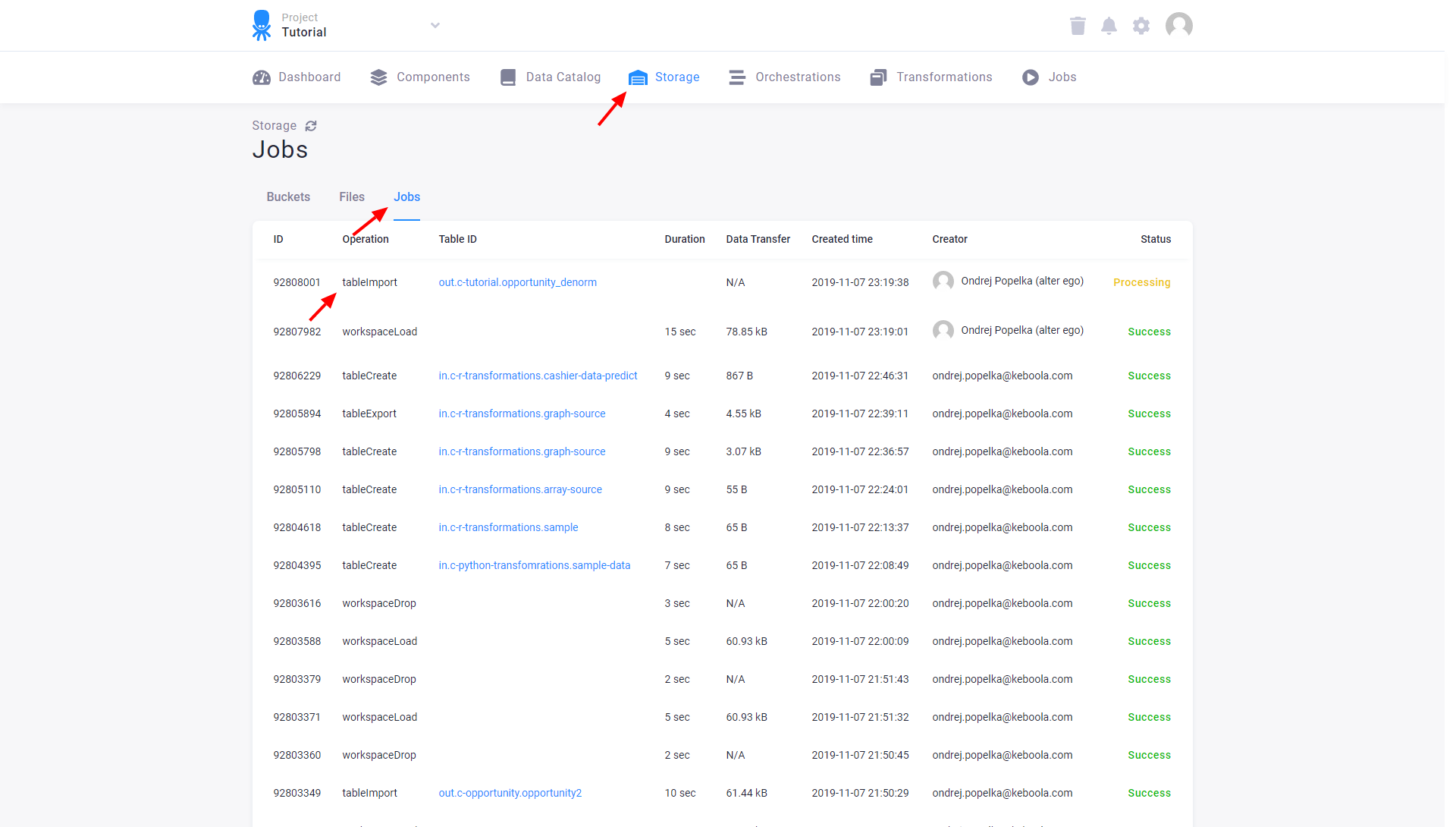
When you click an importTable job, you’ll see the Storage job detail:
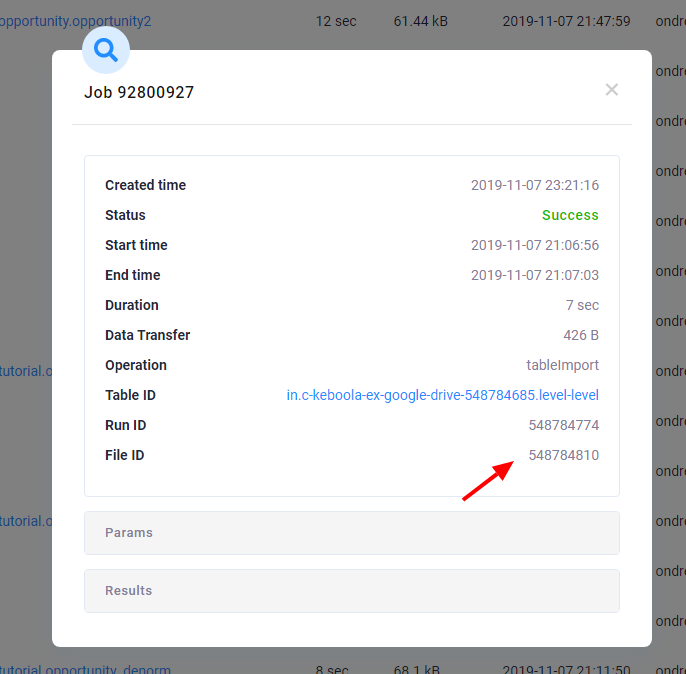
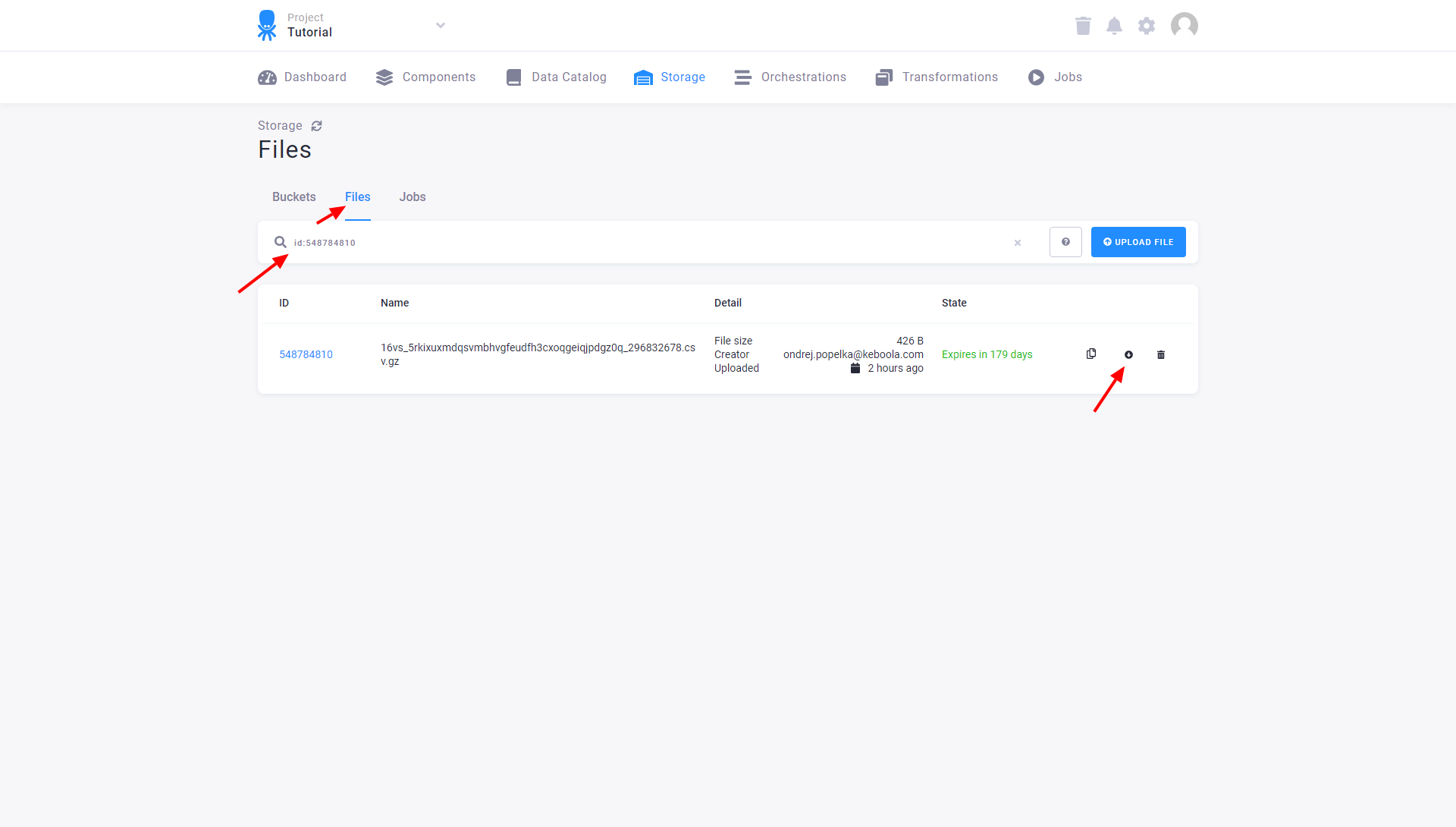
Clicking File ID will take you to the Files section in Storage, where all data pushed into your Keboola project is stored. You can download the data and import it into other tables, or you can revert to an older table version.
A comprehensive video guide on this subject is available on our YouTube channel.