

BigCommerce
This data source connector downloads data about brands, customers, orders, and products in your BigCommerce store.
Prerequisites
Section titled “Prerequisites”You need a V2/V3 API access token with read-only OAuth scope and know your API path. You can find more information on how to obtain these in this guide.
Configuration
Section titled “Configuration”Create a new configuration of the BigCommerce connector.
Global Configuration
Section titled “Global Configuration”First open the global configuration:
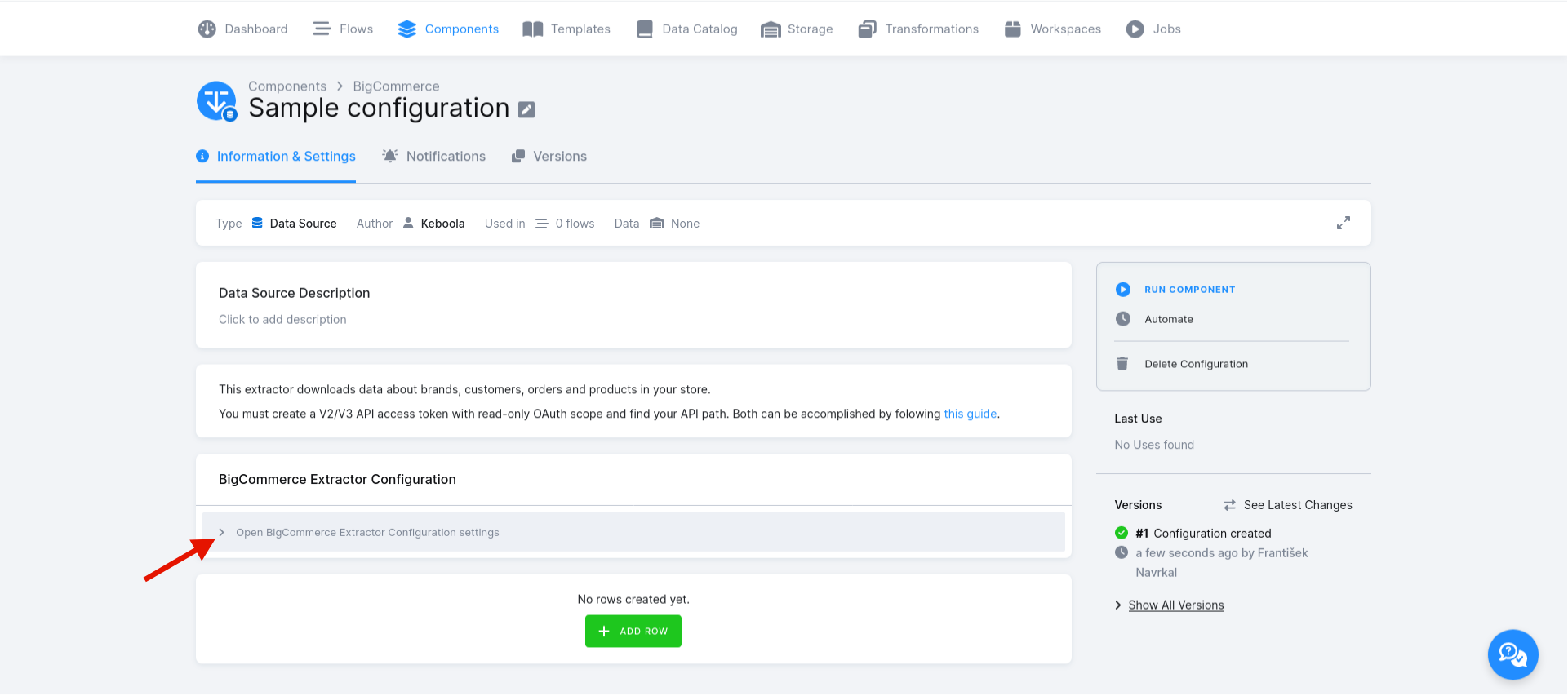
Here you must provide your API path and access token.
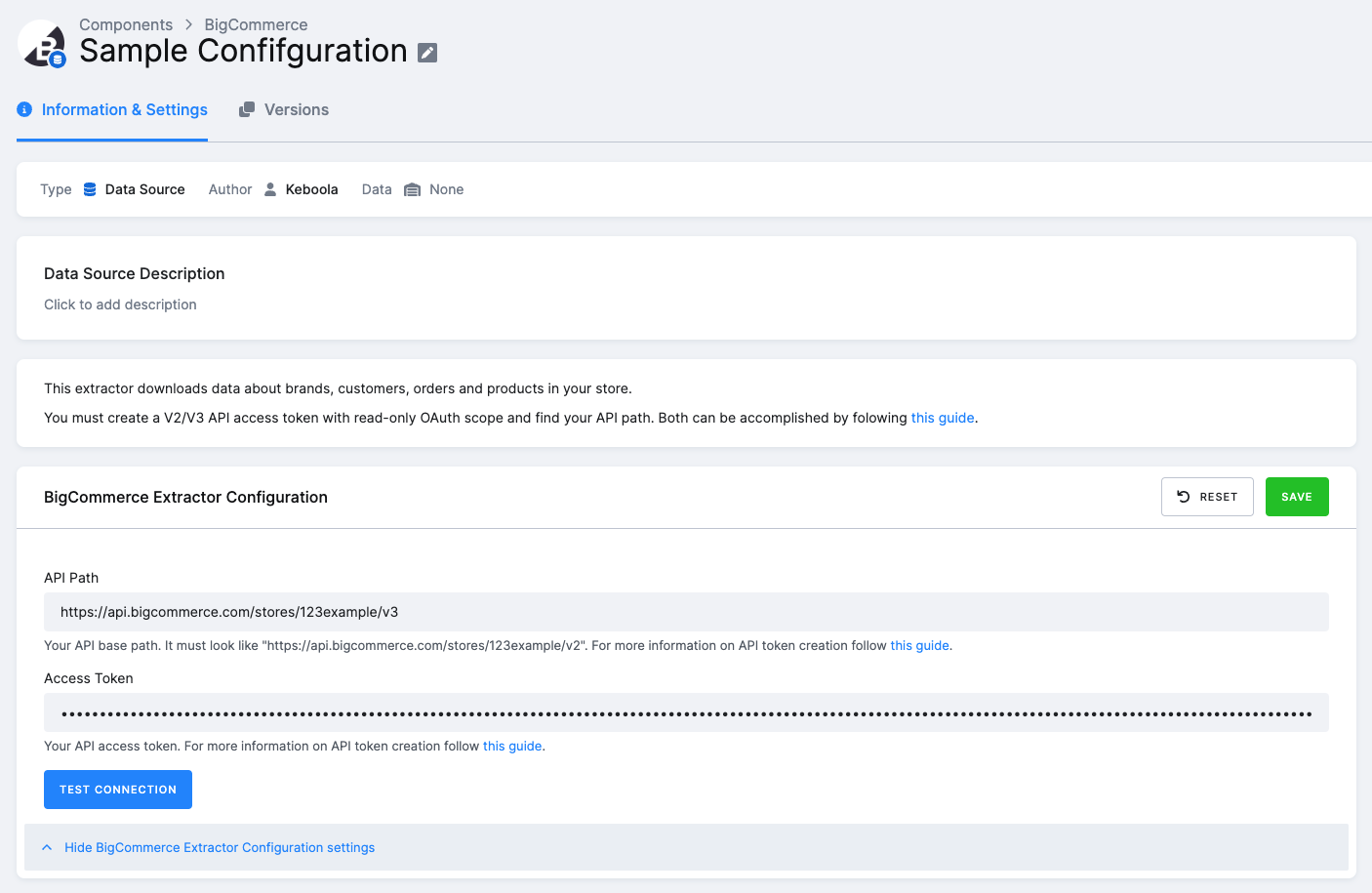
Validate the connection using the Test Connection button.
Don’t forget to save.
Configuration Rows
Section titled “Configuration Rows”Now you can configure the reports to extract as configuration rows. First, click Add Row.

You must select one of the endpoints to select the data you wish to download:
Brandsto download data about brandsCustomersto download data about customersOrdersto download data about orders and their productsProductsto download data about products (in your entire catalogue)
If you are extracting time-bound data (i.e., anything except Brands), you must specify the Sync Options as well:
- Date From: only data modified after this date are downloaded. Use the
YYYY-MM-DDformat or a human readable description, e.g.,5 days ago,1 month ago,yesterday, etc. You can also set this aslast run, which will fetch data from the last run of the component; if no previous successful run exists, all data up to specified Date To will be downloaded. - Date To: only data modified before this date are downloaded. Use the
YYYY-MM-DDformat or a a human readable description, e.g.,5 days ago,1 week ago,today, etc.
Finally, in the Destination part of the row configuration, you must choose the Load Type; i. e., whether you want to use incremental loading (by selecting Incremental Load) or full loading (by selecting Full Load).
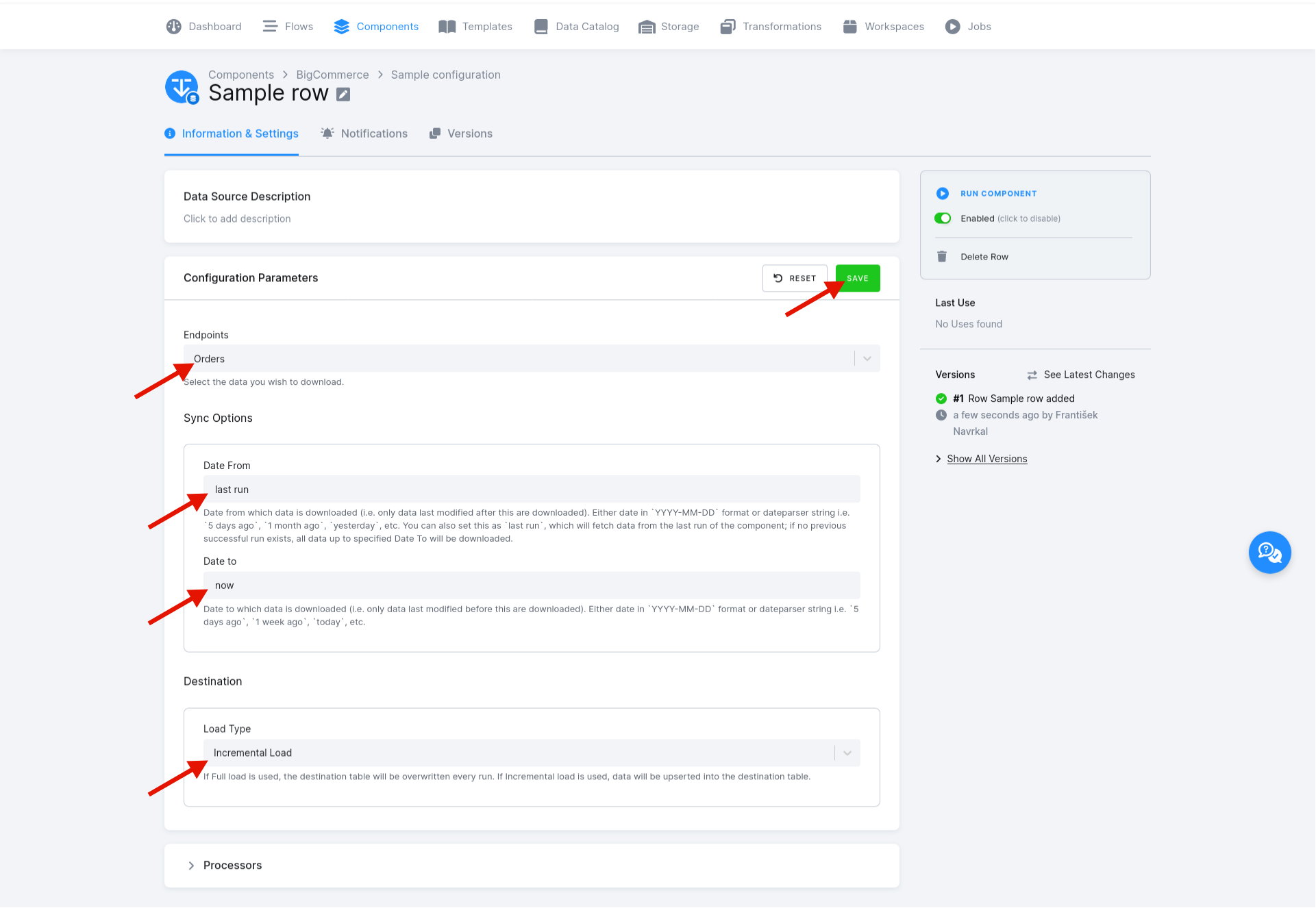
Once again, don’t forget to save.
Example Configuration
Section titled “Example Configuration”Let’s say you want to download orders and their products modified after the last component run up to now, and upsert the resultant data into the Keboola Storage tables called orders and order_products respectively. In that case you would set the following:
- Endpoints to
Orders, - Date From to
last run, - Date To to
now, and - Load Type to
Incremental Load.
Output
Section titled “Output”The output of each configuration row are tables with preset names as specified below for each case of the Endpoints row configuration option. Tables are not created if they would end up empty.
Brands
Section titled “Brands”Brands are extracted as a table called brands that contains all the fields the API provides flattened as columns (with the underscore _ used as a separator).
Customers
Section titled “Customers”Customers are extracted as a table called customers that contains all the fields the API provides flattened as columns (with the underscore _ used as a separator).
Orders
Section titled “Orders”Orders (from the entire catalogue) are extracted as a table called orders that contains all the fields the API provides flattened as columns (with the underscore _ used as a separator) as well as their Order Products as a table called order_products (also with all the fields the API provides and flattened).
The primary key is composed of only the column id for the table orders and of the combination of the columns id and order_id for the table order_products.
Products
Section titled “Products”Products (from the entire catalogue) are extracted as a table called products that contains all the fields the API provides flattened as columns (with the underscore _ used as a separator).