

CSV Files
All data imported to and exported from Storage has to be in the CSV format.
In many cases, our data source and destination connectors take care of the necessary conversion, but sometimes you have to be aware of the supported formats --- for example, when you are loading data manually.
Input CSV Format
Section titled “Input CSV Format”Storage accepts CSV files in the format defined by RFC 4180 Specification. This is basically compatible with CSV exports from OpenOffice Calc, MS Excel, and Google Drive.
- Delimiter can be specified by a parameter, defaults to comma
,. - Enclosure can be specified by a parameter, defaults to double quote
". - Enclosure is escaped by preceding it with another enclosure character.
- Header row is required.
- Supported line breaks:
- Windows (CRLF — \r\n)
- Unix (LF — \n)
- File encoding is
UTF-8. - File can be uncompressed or gzipped.
Example
Section titled “Example”Source table:
| col1 | col2 |
|---|---|
| line without enclosure | second column |
| column with enclosure ”, and comma inside text | second column enclosure in text “ |
| column with new line | columns with,tab |
| column with backslash \ inside | column with backslash and enclosure “ |
| column with \n \t \ | second col |
Imported file:
col1,col2line without enclosure,second column"column with enclosure "", and comma inside text","second column enclosure in text """"columns withnew line",columns with tabcolumn with backslash \ inside,"column with backslash and enclosure \"""column with \n \t \\,second colA CSV file in this format can be exported from
- OpenOffice / LibreOffice Calc, where you simply save the file in a Text CSV file and select Unicode (UTF-8) encoding.
- Google Drive, where it is the default output format (note, however, that you might prefer to use the Google Sheets data source connector instead).
- Microsoft Excel by following the below instructions.
Exporting from Microsoft Excel
Section titled “Exporting from Microsoft Excel”Because Microsoft Excel does not support UTF-8 encoding very well, it is a bit tricky to
export data correctly. There are a
number of options,
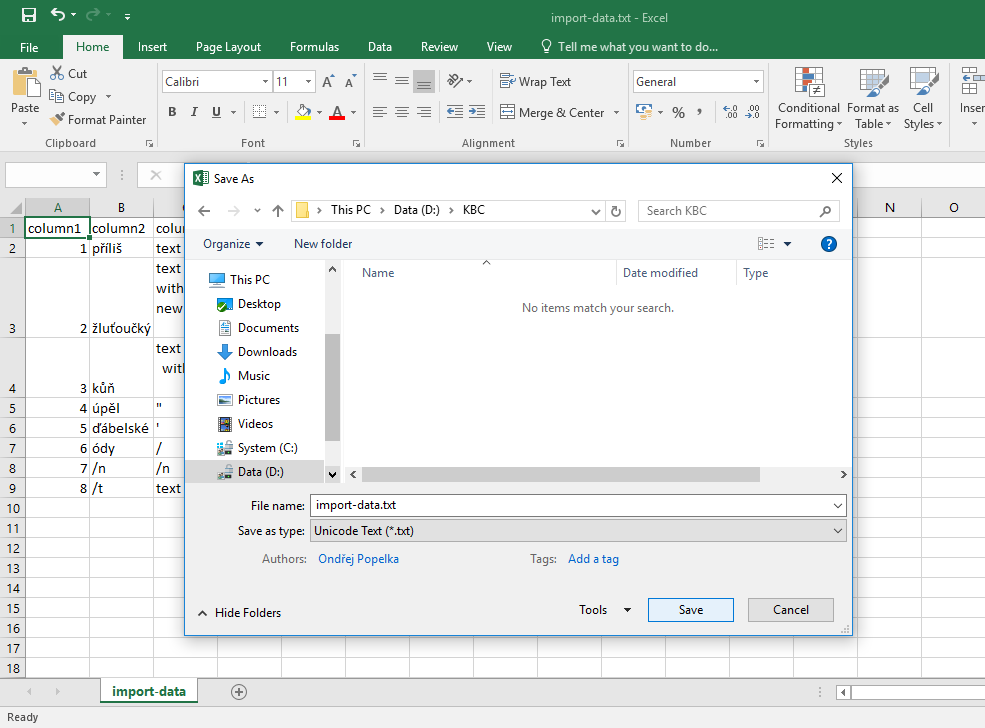
but without using any non-standard Windows tools, the quickest is to save the Excel sheet as Unicode Text (*.txt)
format:
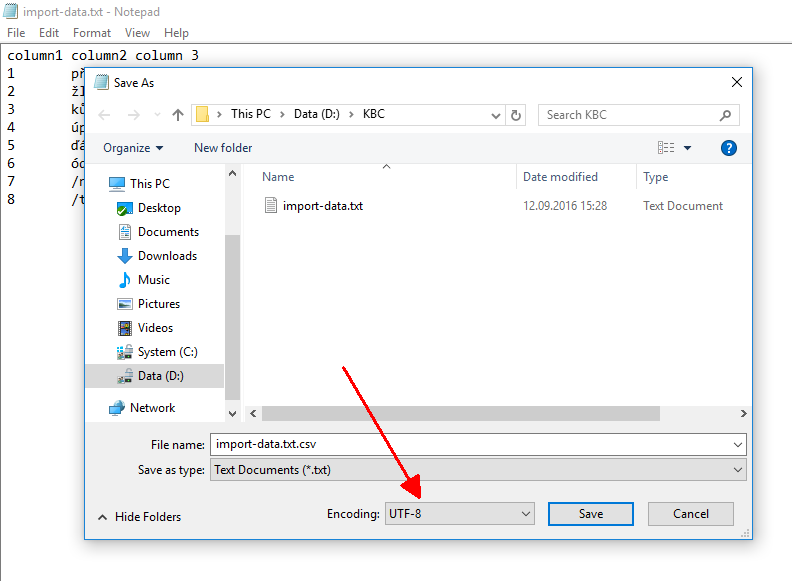
This will produce a tab-delimited file in UTF-16 encoding, which you can convert in Windows
Notepad. Simply open the file, and without making any modifications, save it with UTF-8 encoding (and .csv extension):
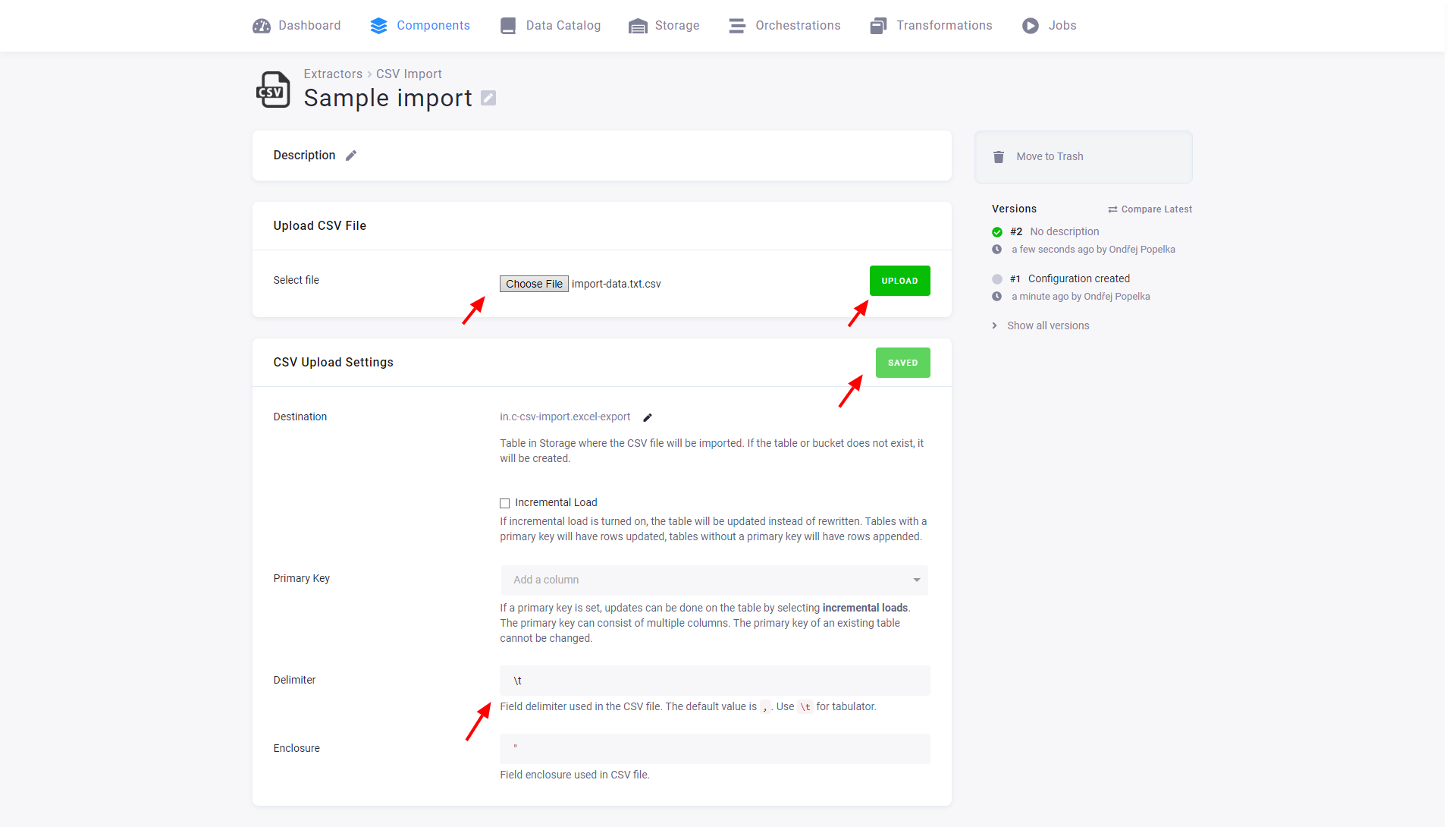
The resulting file import-data.txt.csv can now be imported into Keboola Storage as a tab delimited file.
Note: as long as your data does not contain any non-ASCII characters, you can simply save them as CSV.
Output CSV Format
Section titled “Output CSV Format”When you export a table from Storage, the same format is used for import:
- Delimiter is set to comma
,. - Enclosure is set double quote
". - Enclosure is escaped by preceding it with another enclosure character.
- Header row is always present.
- Unix line breaks are used (LF — \n)
- File encoding is
UTF-8. - File is exported uncompressed (export function in Storage Console) or gzipped (internal exports).
The above format is again compatible with many applications; you can
- open it in OpenOffice / LibreOffice Calc without any conversion (just make sure you use only comma as a delimiter when asked about the file format).
- import it into Google Drive without any conversion (notice, however, that you might want to use the Google Drive Writer instead)
- import it into Microsoft Excel by following the below instructions.
Note: The rows are exported in random order and there is no way to specify ordering of rows in the exported file.
Opening in Microsoft Excel
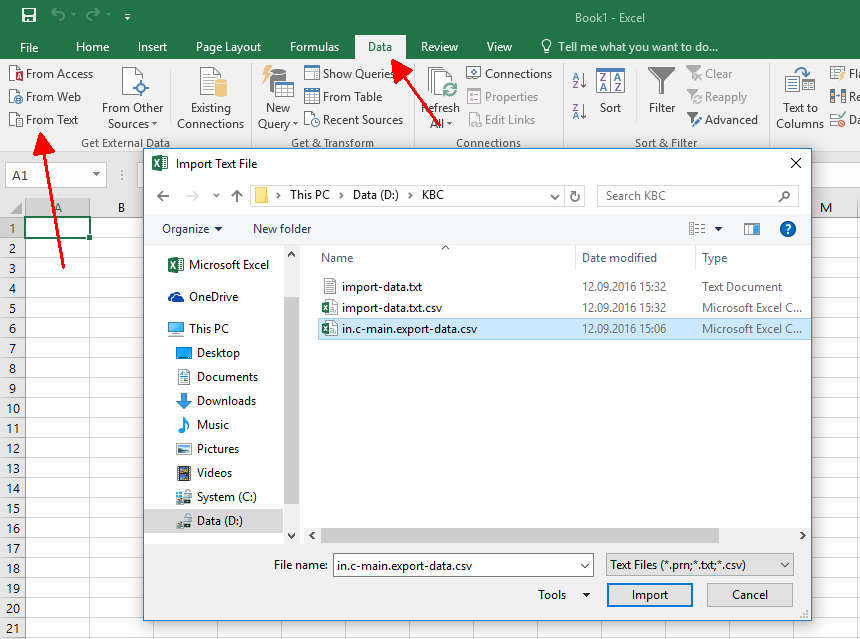
Section titled “Opening in Microsoft Excel”The easiest way to import the CSV file exported from Keboola into Microsoft Excel is by starting Excel and opening a blank workbook. Then use the Data — From Text function and select the exported file:
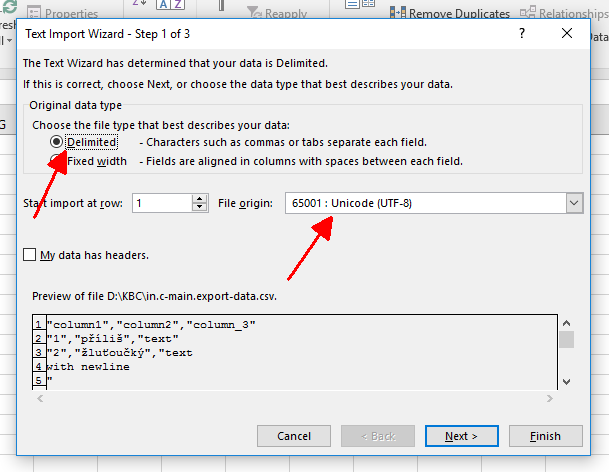
An import wizard will start. On its first screen, select the delimited file and Unicode UTF-8 encoding:
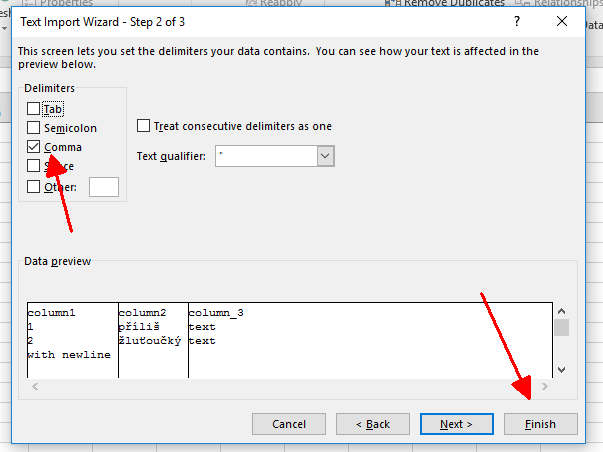
On the next screen, make sure that only the comma delimiter is selected:
However, using this method, Excel is not able to import new lines contained in table cells. If you need to do that, you have to use a more complicated approach.