

Microsoft Advertising (Bing Ads)
The Microsoft Advertising (Bing Ads) data source connector supports the extraction of either campaign entity data or various types of available reports. In the case of reports, you can specify your own set of columns and the primary key to use in Keboola Storage, but there are also presets of columns and appropriate primary keys available.
Prerequisites
Section titled “Prerequisites”Have your Bing Ads Account ID and Customer ID ready. Please
follow this part of the official documentation.
Both should be numbers in the format of 391827251.
Configuration
Section titled “Configuration”Create a new configuration of the Microsoft Advertising (Bing Ads) connector.
Global Configuration
Section titled “Global Configuration”First log into your account using the Authorize Account button in the Keboola interface.

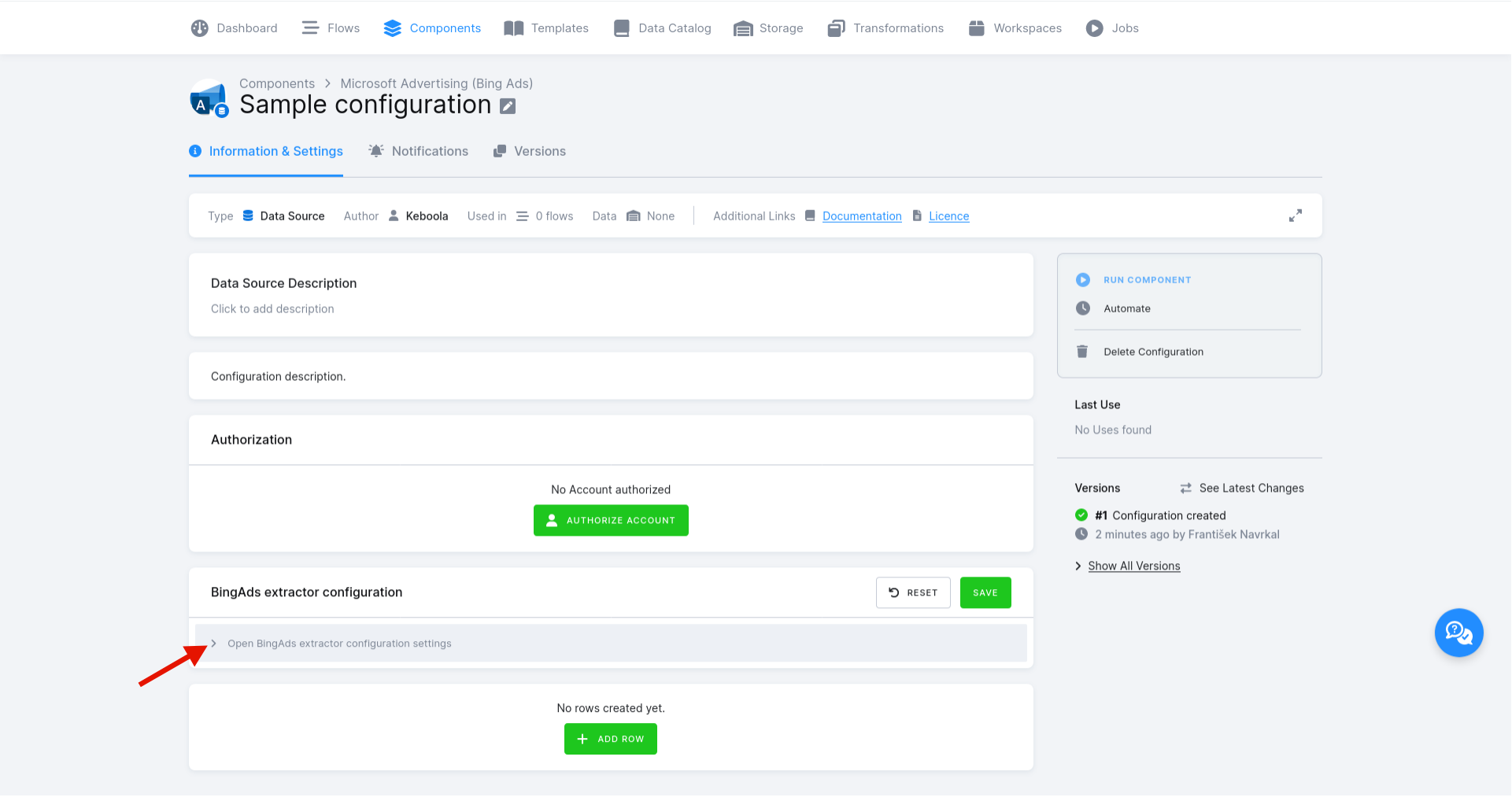
Then open the global configuration:
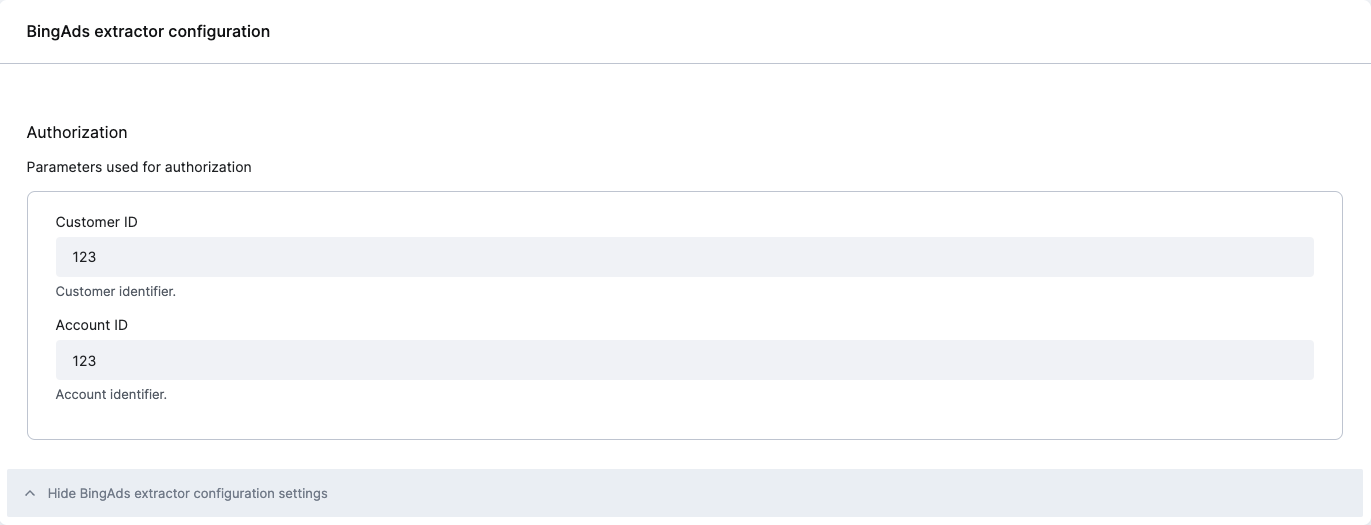
Enter your Account ID and Customer ID into the component’s global configuration, as shown in the screenshot below. Don’t forget to save the configuration.
Configure Reports (Configuration Rows)
Section titled “Configure Reports (Configuration Rows)”Now you can configure the reports to extract as configuration rows. First, click Add Row:

Next, select the object type:
- Entity to extract campaign entities (Ads, Ad Groups, Campaigns, etc.).
- Report (Prebuilt) to extract reports using one of the presets.
- Report (Custom) to extract reports using your own set of columns and the primary key.
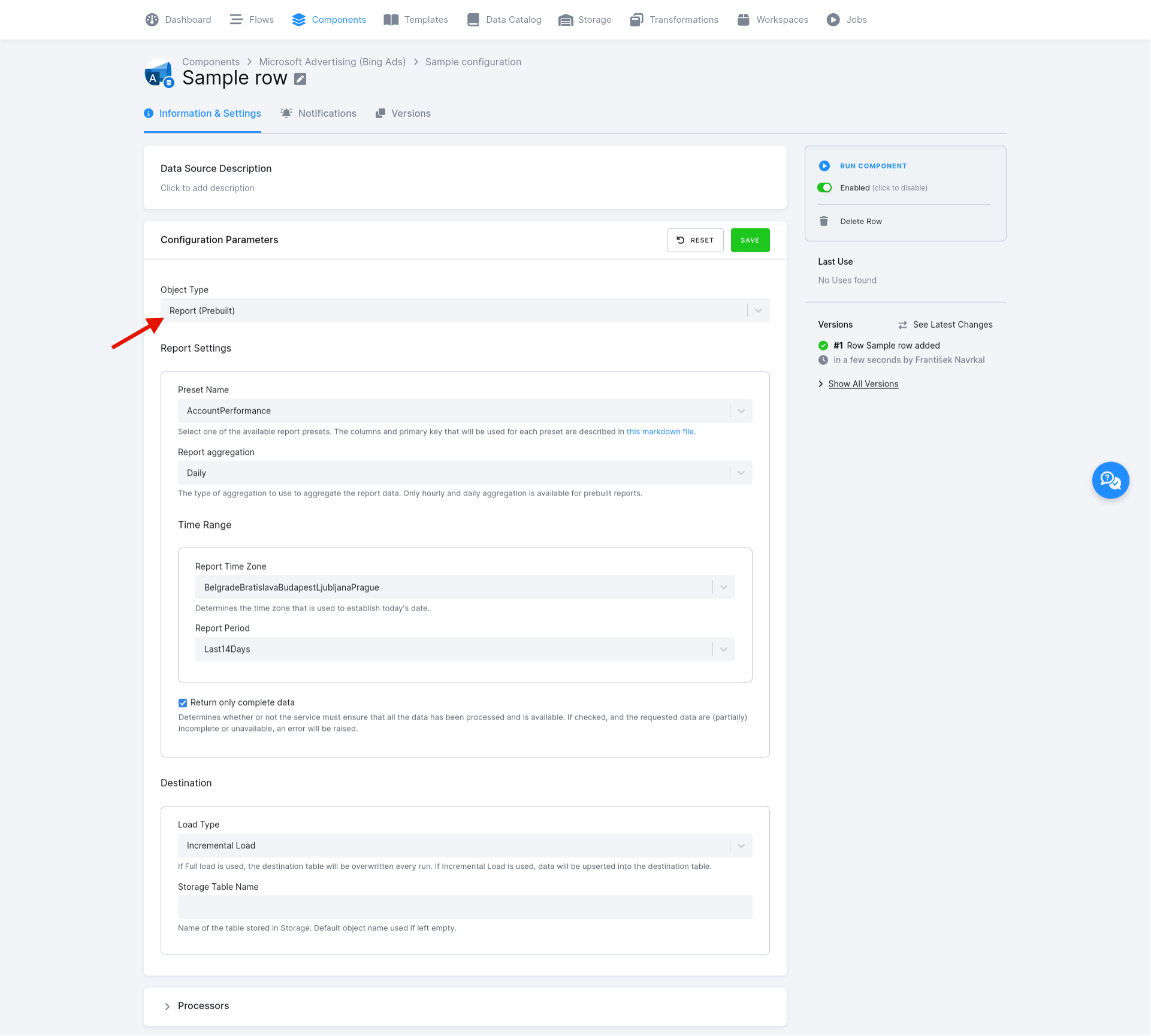
The rest of the configuration depends on which Object Type is selected.
Prebuilt reports
Section titled “Prebuilt reports”This part of row configuration only becomes available if Report (Prebuilt) is selected as the Object Type. Here
you must set these options:
- Preset Name (preset_name) — Select one of the available report presets. The columns and the primary key that will be used for each preset are listed here.
- Report Aggregation (aggregation) – The type of aggregation that needs to be used to aggregate the report data. For prebuilt
report presets, only
DailyandHourlyaggregation is available. - Time Range
- Return only complete data (return_only_complete_data) – Determines whether the service must ensure that all the data has been processed and is available. If checked and the requested data are (partially) incomplete or unavailable, an error will be raised.
Custom reports
Section titled “Custom reports”This part of row configuration only becomes available if Report (Custom) is selected as the Object Type. Here you
must set these options:
- Report Type (report_type) – Select one of the available report types described in the official documentation.
- Report Aggregation (aggregation) – The type of aggregation to use to aggregate the report data.
- Time Range
- Return only complete data (return_only_complete_data) – Determines whether or not the service must ensure that all the data has been processed and is available. If checked and the requested data are (partially) incomplete or unavailable, an error will be raised.
- Columns (columns) – List of columns to use for the report. To reload the list of columns available for the selected report, click the Re-Load Available Columns button.
- Primary Key Columns (primary_key) – List of columns to be used as the primary key. The list will contain only columns
that have been selected in the
columnsfield. We recommend using dimension columns only and using ID columns where possible to avoid ambiguity in case the dimension name is changed.
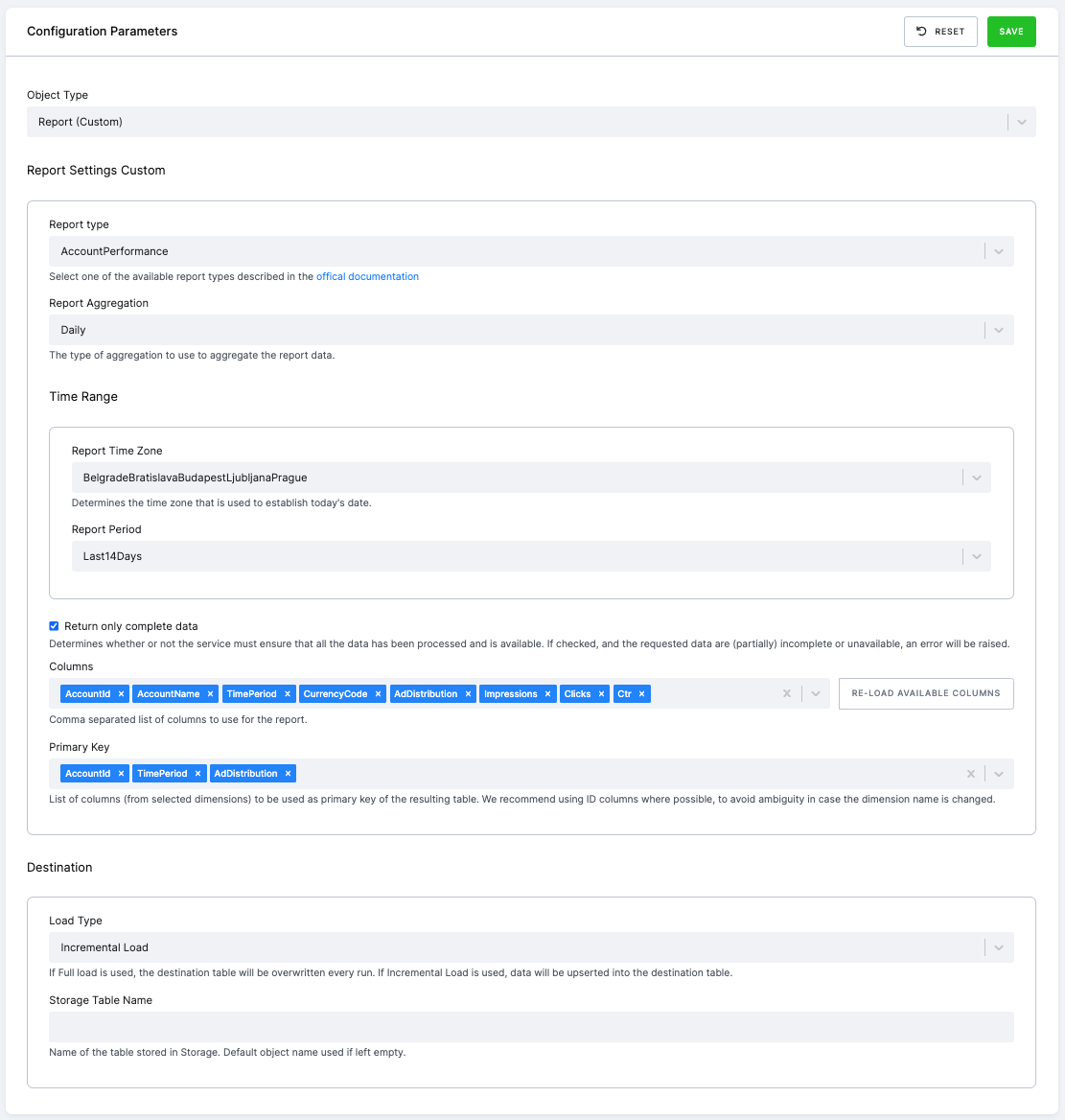
Specifying time range
Section titled “Specifying time range”For reporting, it is possible to define the required time range. It can be either a fixed date or a relative period.
Incremental fetching (true deltas) can be achieved by setting the Date From to the last run value, which sets the reporting
period to cover the time since last extraction. Make sure to set the Destination Load Type to Incremental Load to
collect historical data.
Parameters
- Report Time Zone (time_zone) – Determines the time zone that is used to establish today’s date.
- Report Period (period) – The time period the report relates to. If
CustomTimeRangeyou will also need to provide the following 2 parameters: - Date From (date_from) – Start date of the report. Use the YYYY-MM-DD format or a human readable description, e.g.,
5 days ago,1 month ago,yesterday, etc. You can also enterlast runto start the reporting period at the time of last extraction (this cannot be done in case of the first run for obvious reasons). - Date To (date_to) – End date of the report. Use the YYYY-MM-DD format or a human-readable description, e.g.,
5 days ago,1 month ago,yesterday, etc.
Entities extraction
Section titled “Entities extraction”This is useful for getting additional information about your campaigns or other entities. However, note that in most cases it may be more convenient to include entity related columns in the report itself.
To download entities, select Entity Object Type and configure the following options:
- Entities – List of entities (or entity types) to download. To load a full list of entities available, click
the Re-Load Available Entities button. Currently, only the extraction of entities within the
EntityDatadata scope is supported. More information is available in the official documentation . - Only download changes since the last run (since_last_sync_time) – If checked, only changes since the last component run will be downloaded. If checked for the first run of this component row, it will be ignored (i.e. all data will be downloaded).
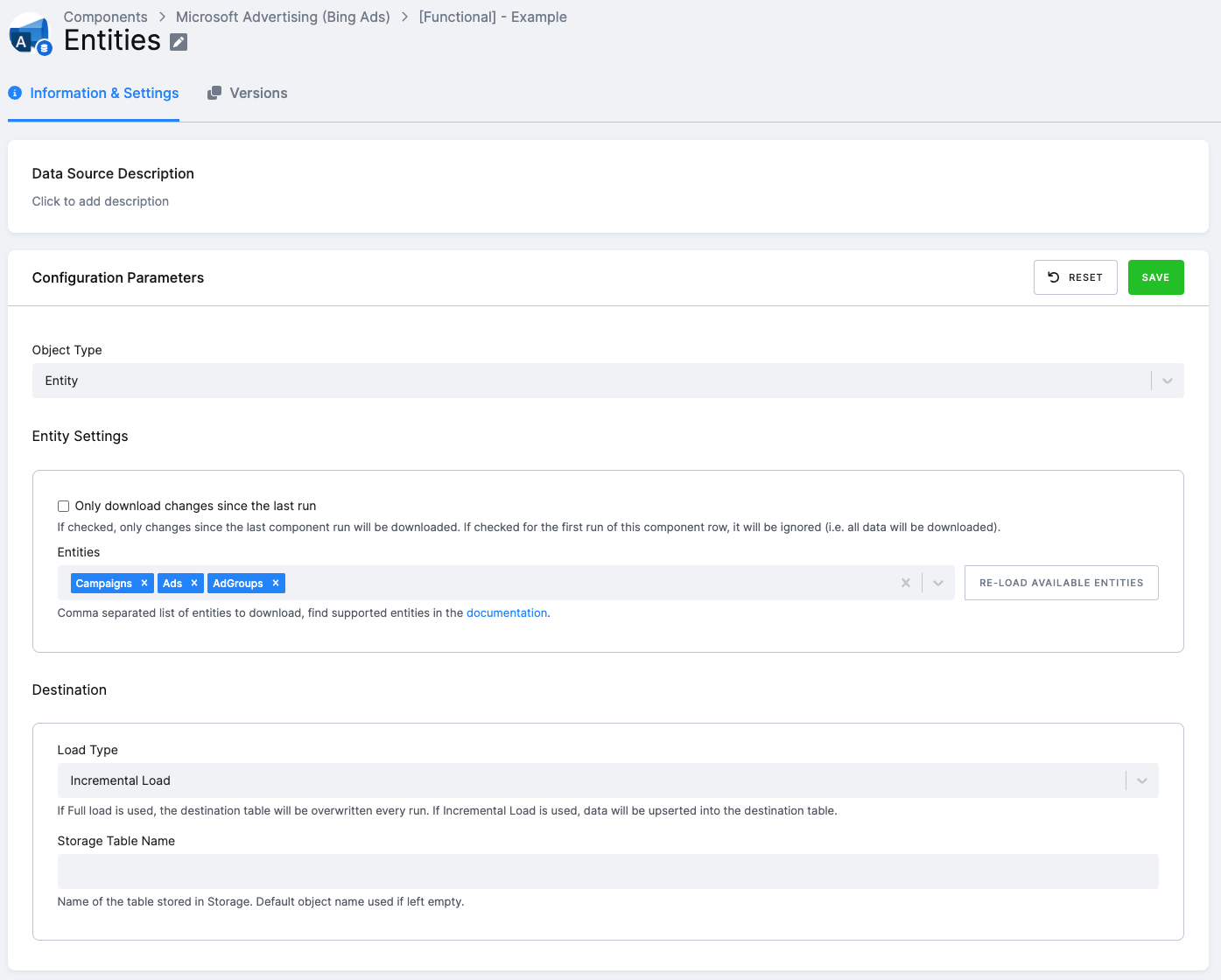
Destination
Section titled “Destination”Finally, you must set how the extracted data will be saved in Keboola Storage.
- Load Type (load_type) – If Full Load is used, the destination table will be overwritten every run. If Incremental Load is used, data will be “upserted” into the destination table.
- Storage Table Name (output_table_name) – Name of the table stored in Storage. Defaults are used if left empty (see the Output section for details).
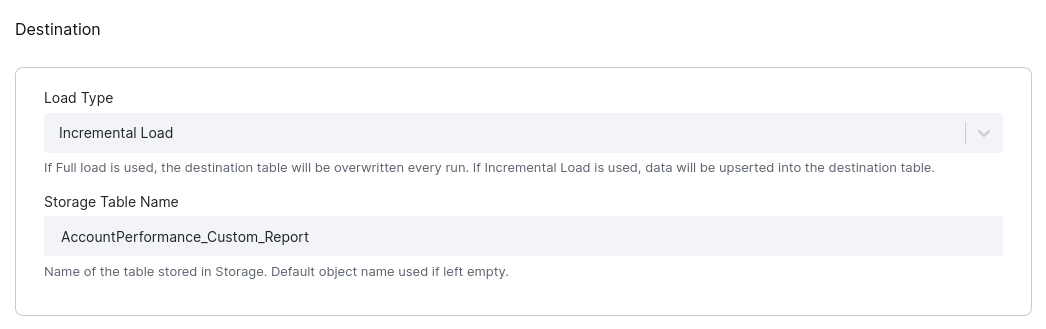
Once again, don’t forget to save.
Example Configuration
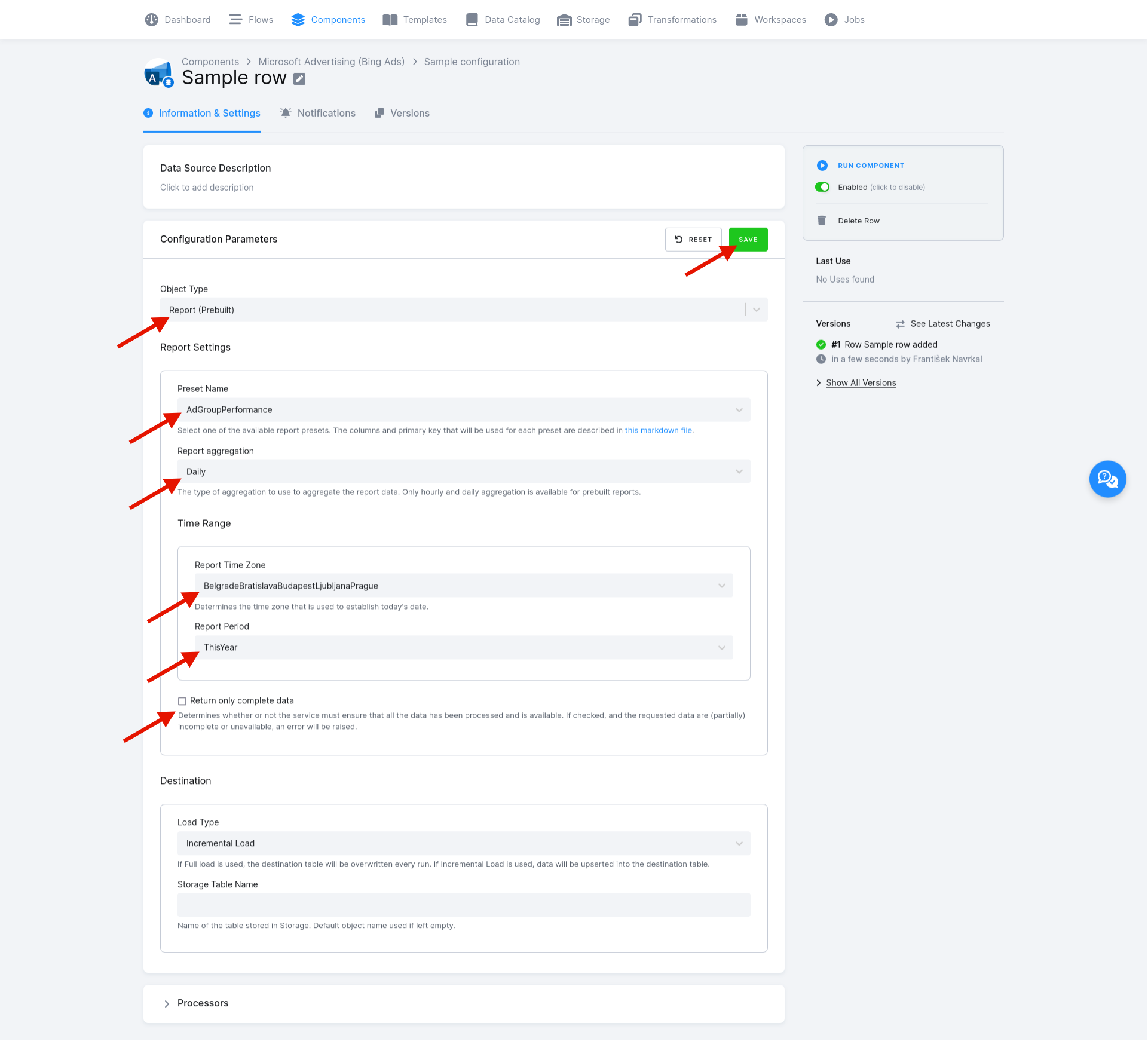
Section titled “Example Configuration”Let’s say you want to download an AdGroupPerformance report
with the preset columns and a primary key
and upsert the data into a table called AdGroupPerformance_Daily_Report. In that case, you would:
- set the Object Type to
Report (Prebuilt), - set the Preset Name to
AdGroupPerformance, - set the Report Aggregation to
Daily, - set the Report Period to
ThisYear, - uncheck Return only complete data (since we are using
ThisYearas the reporting period, not all data is available), and - set the Load Type to
Incremental Load.
If needed, you can also change the Report Time Zone, of course. We can leave Storage Table Name empty since we
want the default table name of AdGroupPerformance_Daily_Report, but you can set your custom Storage Table Name if
needed.
Output
Section titled “Output”The output of every configuration row is always a single table in the Keboola Storage. If you specify the Storage Table Name in the destination configuration, this name is used; otherwise, a default name is generated as specified below.
Entities
Section titled “Entities”When extracting campaign entity data (i.e., when the Object Type in the row configuration is set to Entity), the default name of
the Keboola Storage output table is entities.
Reports
Section titled “Reports”Prebuilt
Section titled “Prebuilt”When extracting report data (i.e., when Object Type in row config is set to Report (Prebuilt)), the output table
schema depends on which report preset is specified in the Preset Name row configuration parameter and the chosen
aggregation in the Aggregation parameter. You can see which columns are extracted for each combination of Preset Name and
Aggregation here.
The default table name is constructed as {preset_name}_{aggregation}_Report, where {preset_name} is the Preset
Name parameter value and {aggregation} is the value of the Aggregation parameter.
Custom
Section titled “Custom”When extracting report data (i.e., when Object Type in row config is set to Report (Custom)), the output table schema
depends on the columns set in the Columns parameter. The default table name is constructed as {report_type}_Report,
where {report_type} is the Report Type parameter value specified in the row configuration.