

AWS Cost Usage Reports
This data source connector downloads AWS Cost Usage Reports exported to S3 in CSV format.
Configuration
Section titled “Configuration”AWS Setup
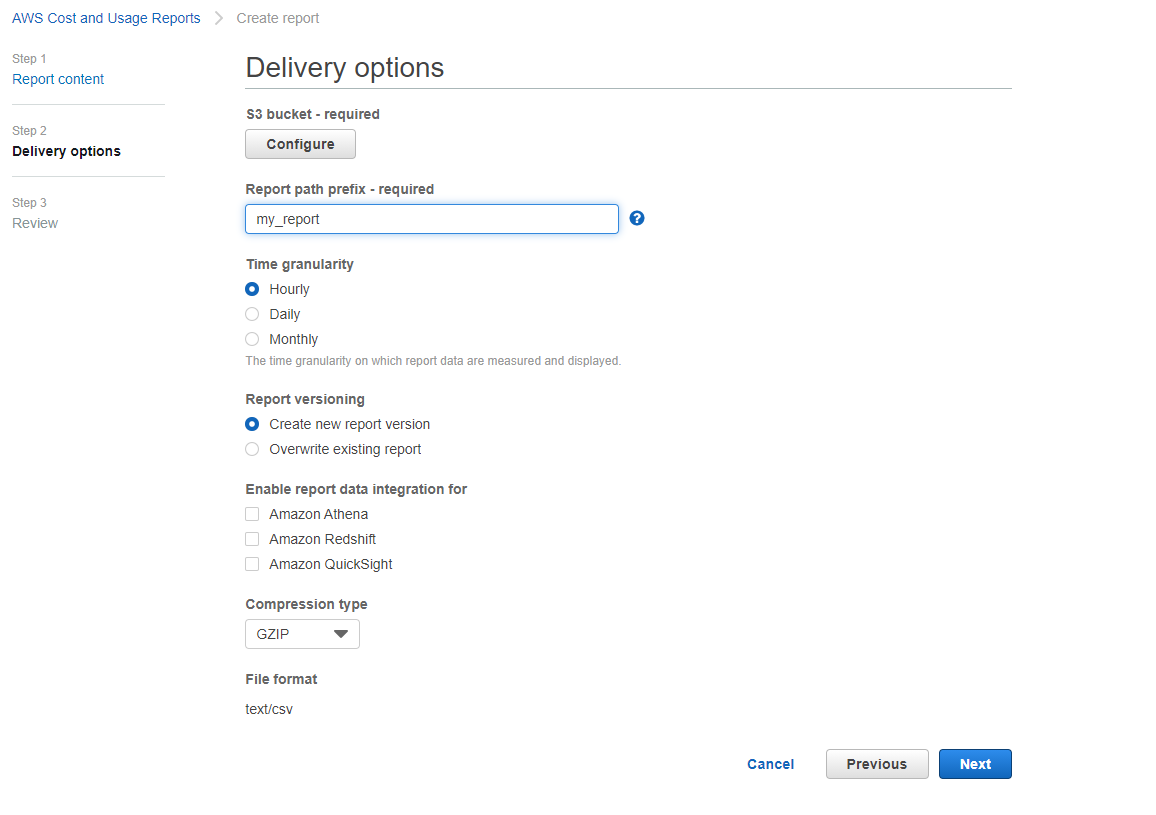
Section titled “AWS Setup”First, the CUR report exports need to be set up in the AWS account to be exported to an S3 bucket in the selected granularity and CSV format. Follow this guide to set up the export.
Export setup:
- Set up an S3 bucket.
- Set the report prefix.
- Select granularity.
- Select report versioning (overwrite recommended).
- Choose the GZIP compression type.
Component Setup
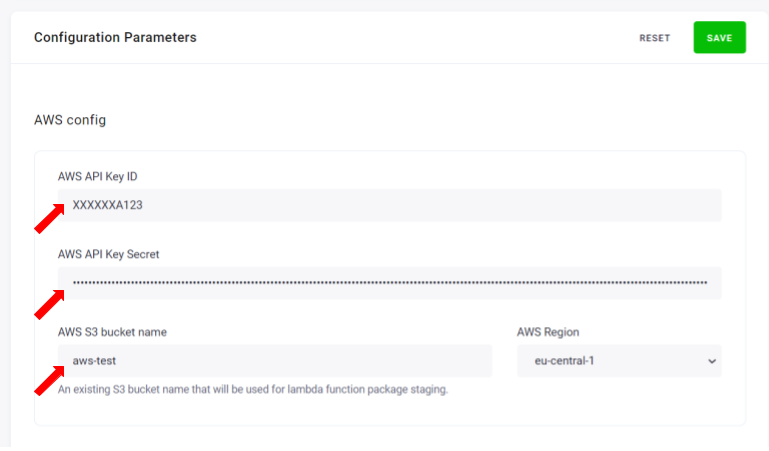
Section titled “Component Setup”Create a new configuration of the AWS Cost Usage Reports connector.
Fill in the AWS config containing your S3 bucket details and credentials as set up in the AWS console.
You have the following loading options:
- Load type — if set to
Incremental Update, the result tables will be updated based on the primary key.Full Loadoverwrites the destination table each time. Note that the primary key should be set onIncremental Load. - Primary key - set the required primary key. Note that primary key columns vary depending on the granularity you choose for your report. Please refer to the data dictionary documentation to choose the proper combination.
Now fill in the extraction configuration parameters:
- New files only — when checked, only the latest reports are downloaded each run. You may use the Reset button to reset the previous timestamp.
Note that when checked, the
Maximum dateparameter is ignored. - Minimum date — lowest report date to download. When
New files onlyis checked, this applies only on the first run, reset the state to backfill. Date inYYYY-MM-DDformat or a string, i.e.,5 days ago,1 month ago,yesterday, etc. If left empty, all records will be downloaded. - Maximum date — lowest report date to download. When
New files onlyis checked, this applies only on the first run, reset the state to backfill. Date inYYYY-MM-DDformat or a string, i.e.,5 days ago,1 month ago,yesterday, etc. If left empty, all records will be downloaded. - Report prefix — the prefix as you set up in the AWS CUR config.
In the S3 bucket, this is path to your report. E.g.,
my-reportorsome/long/prefix/my_report. In most cases, this would be the prefix you’ve chosen. If unsure, refer to the S3 bucket containing the report and copy the path of the report folder.
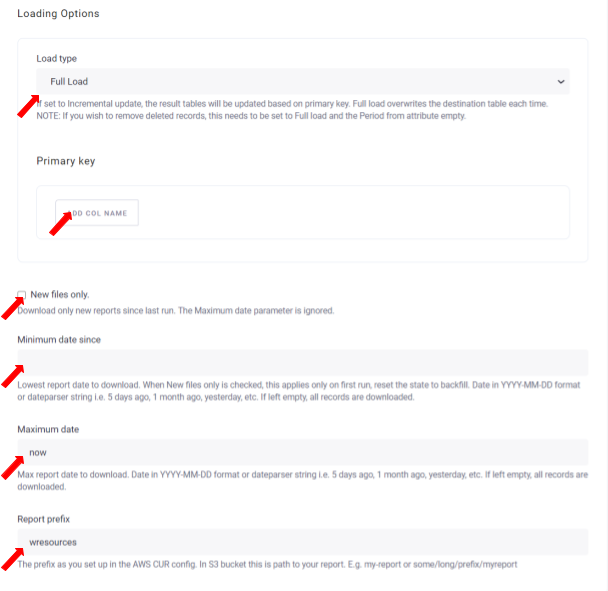
If the Incremental Load is set to true, the new data will be appended to the old ones. This way you can import new data, e.g., from today, without deleting the data imported before.
Output Table
Section titled “Output Table”The output schema follows the structure described in the official AWS documentation.
Keep in mind that the result column names are modified to match the Keboola Storage column name requirements:
- Categories are separated by
__. E.g.,bill/BillingPeriodEndDateis converted tobill__billingPeriodEndDate. - Any characters that are not alphanumeric or
_underscores are replaced by underscore. E.g.,resourceTags/user:owneris converted toresourceTags__user_owner - The Keboola Storage is case insensitive, so the above may lead to duplicate names. In such case, the names are deduplicated by adding an index.
E.g.,
resourceTags/user:nameandresourceTags/user:Namelead toresourceTags__user_Nameandresourcetags__user_name_1columns respectively.